Your site’s Media Library is a place to store media files, such as images, text documents (PDFs, etc.) and some audio files, that have a relatively small file size. From the Media Library, you can easily manage these files and retrieve them for use across one or multiple pages of your site.
The default size limit for files uploaded to the Media Library is 150 MB. Thus, audio files can usually be stored there, preferably in the mp3 format. You can then use the Text Editor widget in Elementor to add the file to a page (that widget has an “add media” component). Alternatively, you can host the file on SoundCloud and use the SoundCloud widget in Elementor to add it to your page.
Because of their size, video files are generally best hosted on an external platform such as YouTube or Vimeo. For example, you can create a channel on YouTube in which your videos are unlisted or private. Use the Elementor video widget to add the video to your page.
If you are creating a page using the WordPress block editor instead of Elementor, use the Audio or Video block or one of the Embed blocks to add the media to your page.
To manage files in your Media Library, follow these directions:
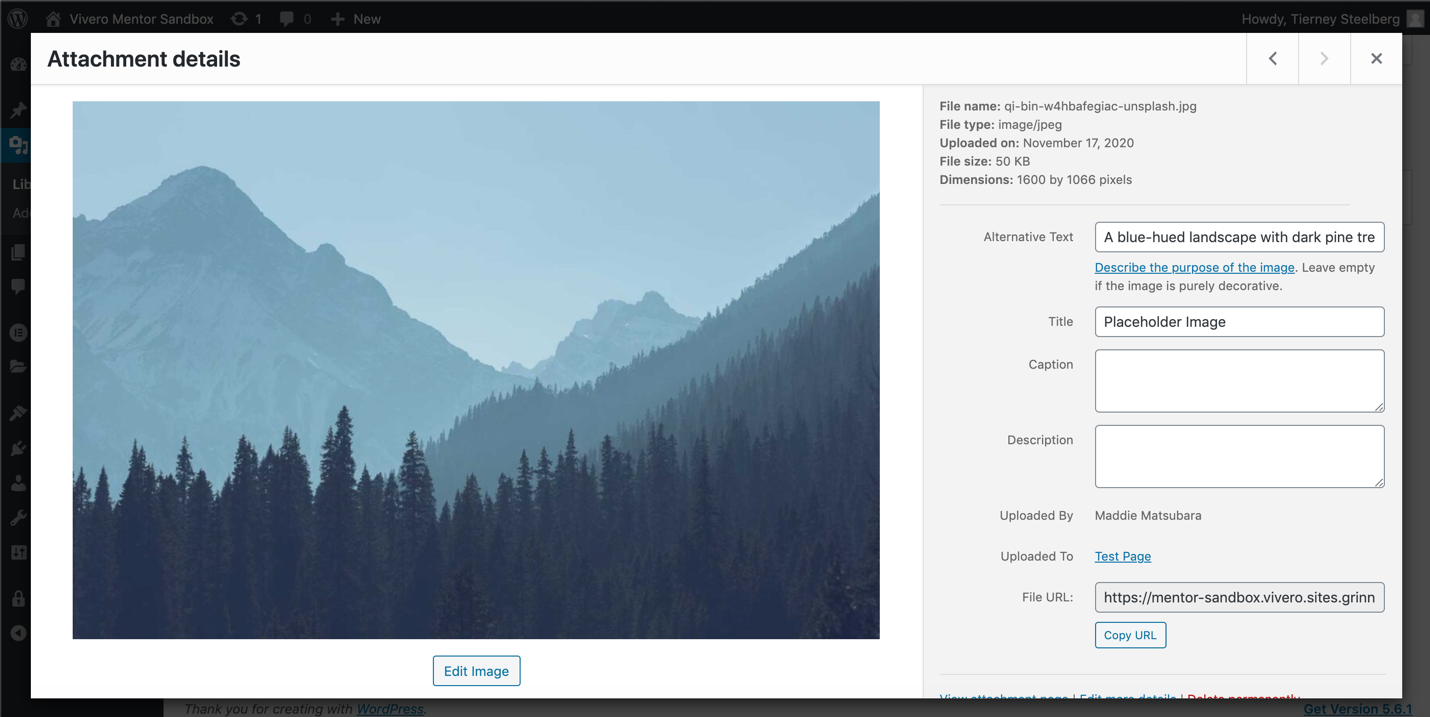
Media Library item description
- Click Media in the left-hand navigation menu to access your Media Library.
- To add a new file or multiple new files, click the Add New button, and either select the file(s) from your computer, or drag and drop one or more files to the upload box.
- Once a file has been uploaded, you can edit its title, caption, and description – and, in the case of images, its alt text, for accessibility – and you can also access the file URL, which allows you to link to the file. You can use the file URL as a link on Pages or in your Site Menu.
- Alt text, or alternative text, is text that describes the image for users who cannot see it. It is an important piece of web accessibility for website creators to put in place. You can learn more about alt text for images from this helpful Alt Text article from Moz. W3C Accessibility also has a more in-depth alt text tutorial.
- In the case of images, you can also do some barebones editing (cropping, rotating, flipping) from within the Media Library. The Gutenberg editor and Elementor page-builder plugin also allow you to do edit media from within the page editing view.
- You can also upload media directly to a page while working on building out content – this media will be automatically added to your media library.