Your site menu dictates the navigation menu for your site that is available to users on every site page, as well as how it is structured (for example, with subpage child menu items that appear underneath a parent item). Currently your site is set to automatically add new top-level pages to your site menu: you can change this from Appearance > Menus.
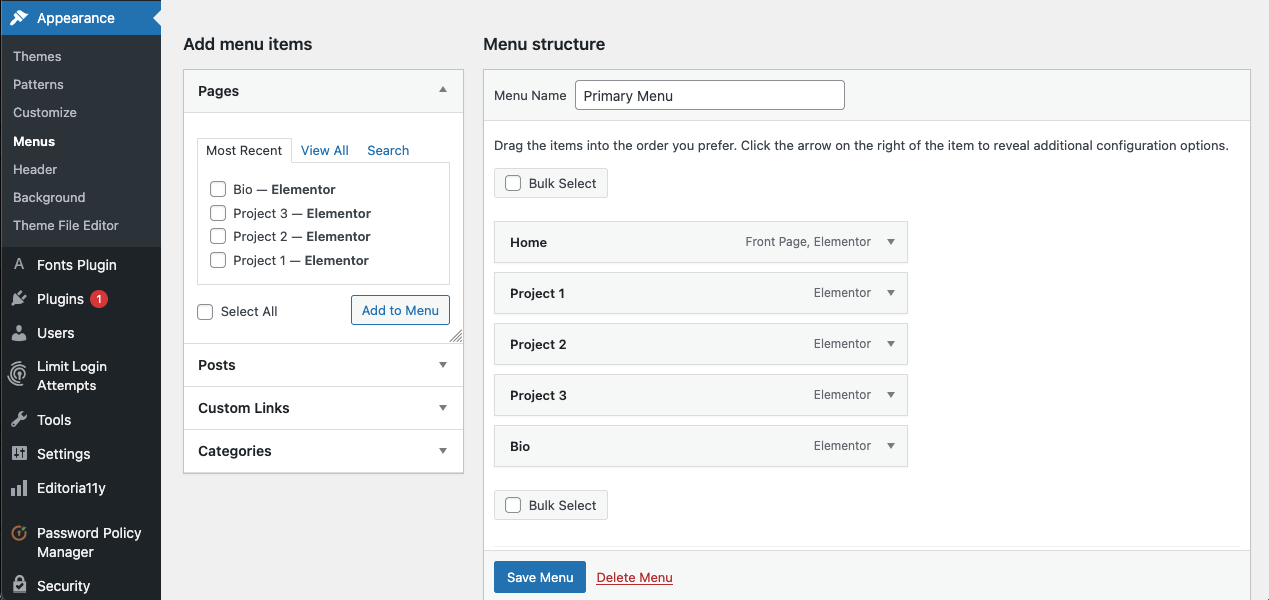
Menu editing
- Hover over Appearance in the left-hand navigation menu, then click Menus. This will bring up the menu editing page.
- The active menu we have created for your site is called “Primary.” Under Menu structure you can drag and drop existing items to reorder them or create dropdowns or select items from Add menu items on the right-hand side to add additional Pages (either Most Recent, View All, or Search from the tabs at the top) and more to the menu.
- You can set your site to automatically add top-level pages to the menu from here, if you would like.
- If you want one of your menu items to be a link to a file (such as a PDF hosted in the site Media Library) or an external link, click Custom Links (under Add menu items), add the file’s URL to the URL box, and your desired title to the link text box.