Just as you would install plugins, installing themes to Omeka is very similar. Omeka has a few themes installed automatically that you have access to. But there are more themes available at http://omeka.org/add-ons/themes. There is no automatic installer so you would need to upload the theme to your File Manager in cPanel.
Please note that if you are not sure how to access your cPanel, you will not be able to install themes for your Omeka site on your own. Please email dlac@grinnell.edu for assistance or to request domain-level cPanel access.
Start by finding the the theme you’d like to install. Download the theme by clicking on the red button.


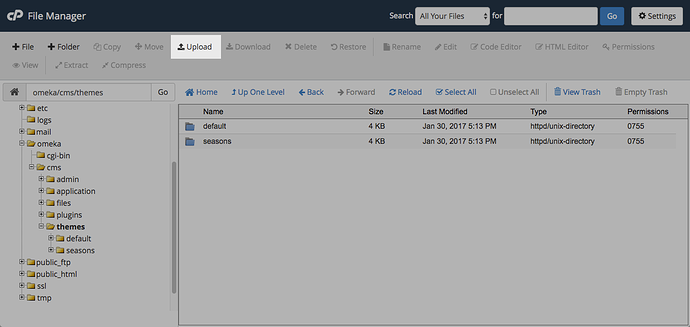
After, you’ll go to your specific Omeka install. Click on themes.

Click Upload.
You can drag and drop the .zip file into the window or you can click select a file.
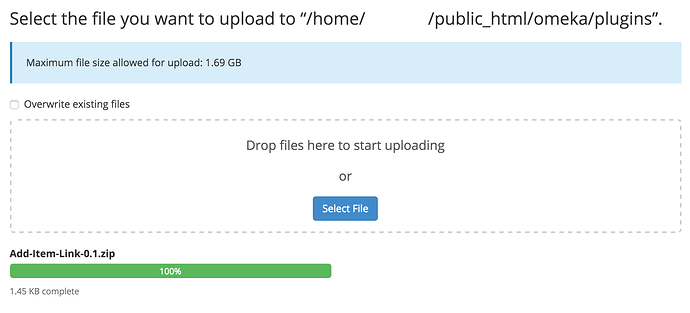
Once your file is uploaded to the themes folder you need to go in and extract the files from the .zip folder. Click on the theme file you just uploaded then click on extract.

You’ll need to confirm that you want to extract the files. Click extract files. 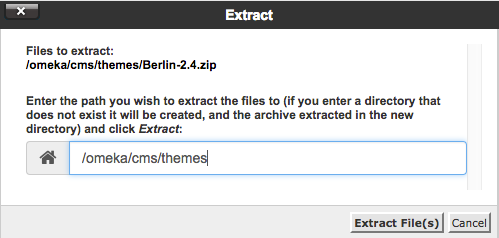
Once the theme is extracted you can delete the .zip file and the theme will now be available for activation within your Omeka administration interface.