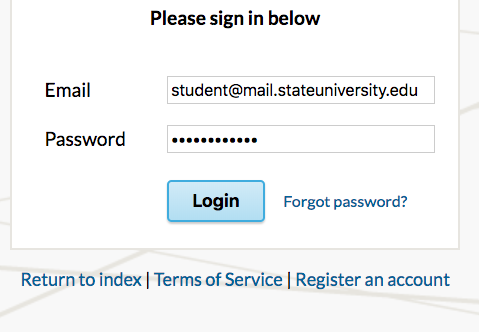
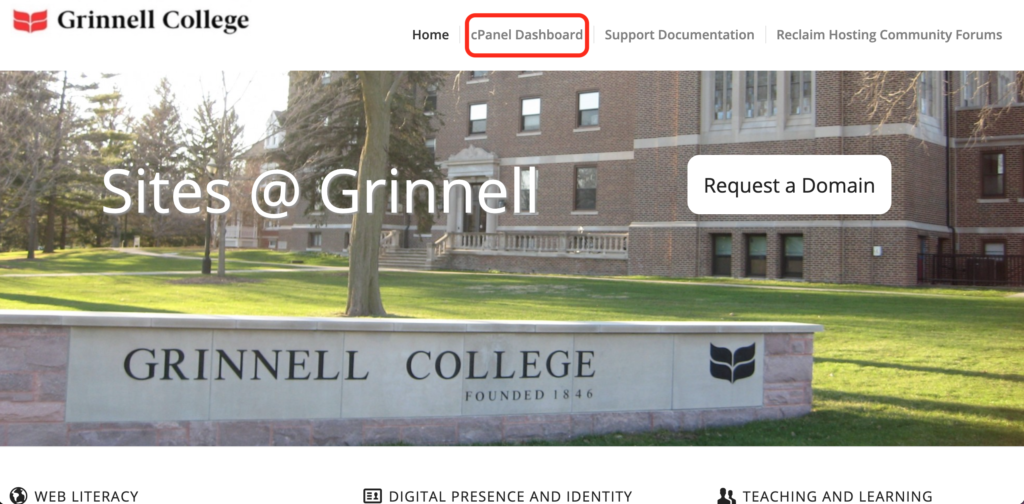
- To get started you’ll need to login to your control panel (https://sites.grinnell.edu/dashboard) using your Grinnell College username and password.
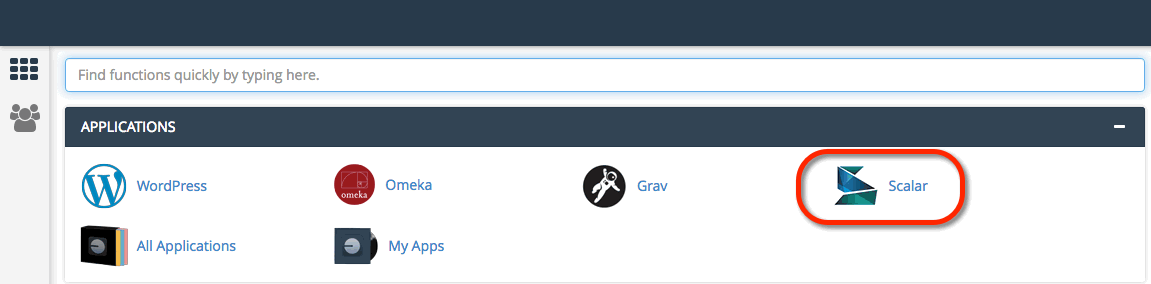
- Navigate to the Application section and select Scalar. You can also use the search function as well.
- When you click on the Scalar icon, you will be taken to the Scalar information page. Click install this application.

- On the next page, fill in the different fields accordingly:
-Select the domain or sub-domain where you’d like your Scalar site to live. You can create a sub-domain by following directions in the section Setting up Subdomain. The directory is optional. If you are using a sub-domain, you may not need to use a sub-directory. You can learn more by reading Subdomains vs Subdirectories.

-Under version, select the version that is most recent.
-By default the installer will automatically backup your website and update it anytime a new version comes out. While we recommend you keep this option, it is possible to only do minor updates, or turn them off completely.
-The installer will also create a database for you automatically, but if you’ve already created one for this website you can choose Let me manage the database settings and enter the details.

-Finally, in Settings, you’ll need to create a username and password for the Scalar install. A password can be generated for you, but you should try to create your own. - Click Install.
- Once the installer is finished loading, you will be taken to the My Apps section of the dashboard. Here you’ll find links to login to your scalar installation.

- Log into your new Scalar instance with the credentials you set during the install process.