
1.Introduction
2.Wordpress
WordPress is an online, open source blog application. Powering over 30% of the web, WordPress is easily one of the most popular content management systems (CMS) in existence today. WordPress forked from b2/cafelog in 2003, and WordPress MU multiple website functionality has been integrated since 2010. You can read more about the WordPress backstory here.
3.General Settings: Title and Tagline
Now that you have your WordPress installed and running, it’s time to look at some basic settings for your site.
- The place that you will access the settings for your site is called the Dashboard, and it provides the starting point for accessing all of your sites dials and knobs.

- The setting we will look at here is your site “title” and “tagline”. It is located in Settings > General. Once you’re on the General Settings page, you can give your blog any title you want. You can also give your site a tagline, which can be a short description of the site.
When you change the site title and tagline, they will show up at the top of your site. Depending on what theme you use, the title and taglines will show up in various places. In the case of some themes, they might not show up at all depending on whether they allow custom configurations. We won’t worry about that for now.
There are more settings on the General Settings page, such as setting the administrative email account, time zone, date format, etc. Change those to whatever is appropriate for your site and geographical location.
4.WordPress Themes
When it comes to WordPress, customizing the look of your site is simple and straightforward. When you install WordPress through Sites at Grinnell, the default (or pre-set) theme is called Lovecraft. It is a very customizable theme.
You can find general information about Lovecraft here.
In addition to Lovecraft, you’ll have other themes available to you through the Sites at Grinnell standard WordPress template. If Lovecraft doesn’t meet your needs, you can activate another theme on your site or install a completely new one.
Activating Themes
-
Start at your site’s Dashboard.

- Navigate to Appearance > Themes.

- You will see thumbnail images representing each of the themes that you currently have available on your site. Simply mouse over any one of them, and click the Activate link.

That’s all you need to do to change the look of your site with a new theme.
Installing Themes
If none of the themes that were provided when you installed WordPress are what you’re looking for, you can always search for and install other themes from the WordPress Theme Repository.
- Navigate to Appearance > Themes.
- Installing new themes is quite simple. You start by going to the Add New Button.

- Initially you are routed to a Featured page of themes, and you can scroll through to see previews of some featured themes. Using the menu at the top you can use the Feature Filter button to filter by your desired Subject, Features, or Layout. You can also click Newest or Recently Updated.
- Under the thumbnail picture of each theme (when you hover your mouse over the theme) are three choices – Install, Preview, and Details & Preview. Those choices should be pretty self-explanatory so click Install to add a new theme to your site.

- After you install the theme, it is still not active on your site. You will need to Activate it to use it.

Once activated, your site will be using the new theme. Visit your site’s homepage to view your new theme.
5.Publishing Content
The primary activity that you’re likely to be doing on your WordPress site is publishing content. The content could be the text you write, pictures you take, videos or audios (which may be hosted on another site), or other media that you’ve found elsewhere on the Web. WordPress makes it very easy to publish media content of all types, whether hosted on your actual Web server or elsewhere.
Posts vs. Pages
Out of the box, WordPress provides two primary content types for you two work with: posts and pages. If you read blogs or have ever written for a blog before, the concept of a post is probably a bit familiar. Posts often are content that appear on your blog in some kind of scheduled way. They usually are presented on your site in reverse-chronological order. Posts might be what you use to share your regular thoughts, reflections, or ideas about a topic. Posts make up a kind of “river” of content that you’re producing as part of your blogging activity.
Pages usually correspond to our more traditional concept of what makes up a Web site. Pages are presented outside of the “river” of content that are posts. They are more likely to stand alone and be organized according to a traditional hierarchy. Pages might be content that is less frequently updated or changed.
If you were using WordPress to build a business Web site with a lot of information content, you would probably use Pages. If you added a feature to that site where you started to advertise special events or news, you would probably use Posts.
A few other things to know about Pages vs Posts:
-
If you want your content to be accessible to your users via RSS/syndication, you’ll need to use Posts. By default, Pages do not appear in a site’s RSS feed.
-
Categories and Tags (which are used in WordPress to help you organize your content) are ONLY available on Posts. Page organization is done by customizing your site’s menus.
-
Okay, this get’s a little tricky: WordPress, by default, also creates “Category Pages” and “Tag Pages” that display all the Posts in a category or tag. These are NOT related to the regular Page type.
Media
Upon occasion, you may want to include media (images, audio, video) in your site’s posts and pages. There are generally two approaches to handling media in WordPress:
Uploading: You can upload the files to your site’s Media Gallery and then link to them in your posts/pages. This works very well for images, and when you take this approach for images you have the added benefit of being able to make use of WordPress’ built-in (albeit rudimentary) editing tools. Also, when you upload images to WordPress, it automatically creates different sizes that you can use, as needed. This approach works less well for audio and video. In order to have your media files actually show up in a “player” (with controls for stopping, pausing, etc.) you’ll need to install a plugin. Otherwise, you’ll only be able to include links to the files. How people view/listen to them will depend a bit on the setup on their own computer and in their own browser. They may, for example, have to download the media file and then open it in another program on their computer.
Embedding: You can embed media from other sites easily in WordPress. Embedding an image just means providing a URL to its location elsewhere on the Web. Instead of uploading it to the server, WordPress grabs that image from the external source and displays it on your post/page. However, with this approach, you lose your editing capabilities as well as the resizing feature. Embedding audio and video from external sources becomes easier with every version of WordPress it seems. These days, you can embed video and audio from many external services (YouTube, Vimeo, SoundCloud, complete list here) by simply placing the full URL of the audio/video location on its own line in your post/page. There is a complete list of supported external services, and you can learn more about embedding from external sources at the WordPress site. Our general advice is to use externally hosted media whenever it makes sense and works. This is usually the case when you need to use audio or video; without plugins, well-presented audio and video in WordPress is tricky. For images, if you need to do basic editing and/or require different sizes of images, upload them to your site. Otherwise, consider referencing them from another location (your Flickr account, for example).
Post Formats
Recent versions of WordPress have built out a new “post format” feature which, if you are using a theme with the feature enabled, will style post formats differently depending on what they are. The formats that are built-in to WordPress (and are available for theme developers to use) are the following:
-
aside – Similar to a Facebook note update.
-
gallery – A gallery of images.
-
link – A link to another site.
-
image – A single image.
-
quote – A quotation.
-
status – A short status update, similar to a Twitter status update.
-
video – A single video.
-
audio – An audio file.
-
chat – A chat transcript.
Those of you familiar with Tumblr may recognize this approach to post formats.
For the most part, post formats are designed as a way to style a site (and customize styling depending on the kind of content that is being displayed). They have no special functionality, and their use depends entirely upon the theme you are using. Many older themes, for example, do not recognize post formats.
6.Reading Settings - Front Page
WordPress is a very flexible platform for creating full-blown websites, not just blogging sites. This page will show you how to change the “front page” of your website.
As we have said before, WordPress provides two primary content types for you two work with: posts and pages. Posts, as in blog posts, are a somewhat complex form of a webpage. Each blog post gets published in reverse chronological order, on the front page of a WordPress site. You write a new post, and it gets published at the top of the front page. Pages are a more static form of content. They are additional areas to put information that doesn’t change much. So what if you would like to make the front page of your WordPress site based on a page instead of your blog posts?
- Start at the Dashboard.
- Navigate to Settings > Reading.
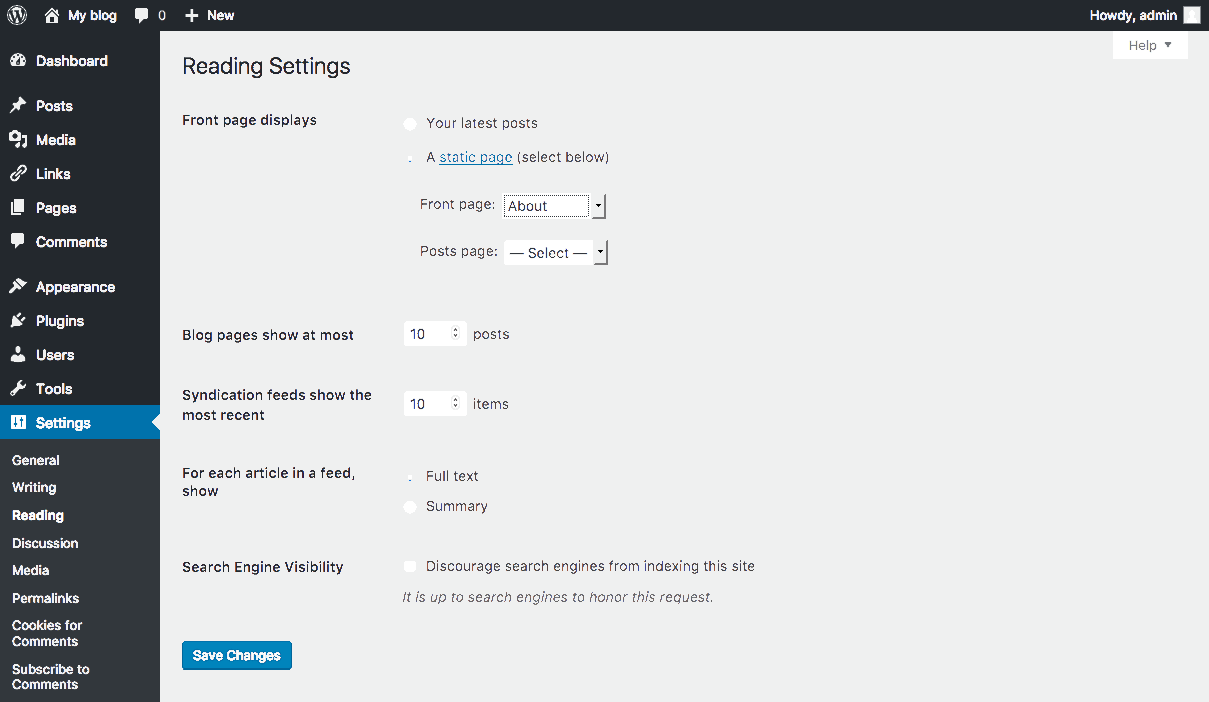
- Normally, the front page displays your latest blog posts. What we want to do instead is select a Page from the website. Obviously, this page has to exist before you can select it. Select the “A static page” radio button and choose the About page from the Front page drop-down menu (an About page was created for you when you installed WordPress). Press the Save Changes button and now you will have the “About” page as your Front page. Edit it as you see fit and provide a good welcoming page for your visitors.
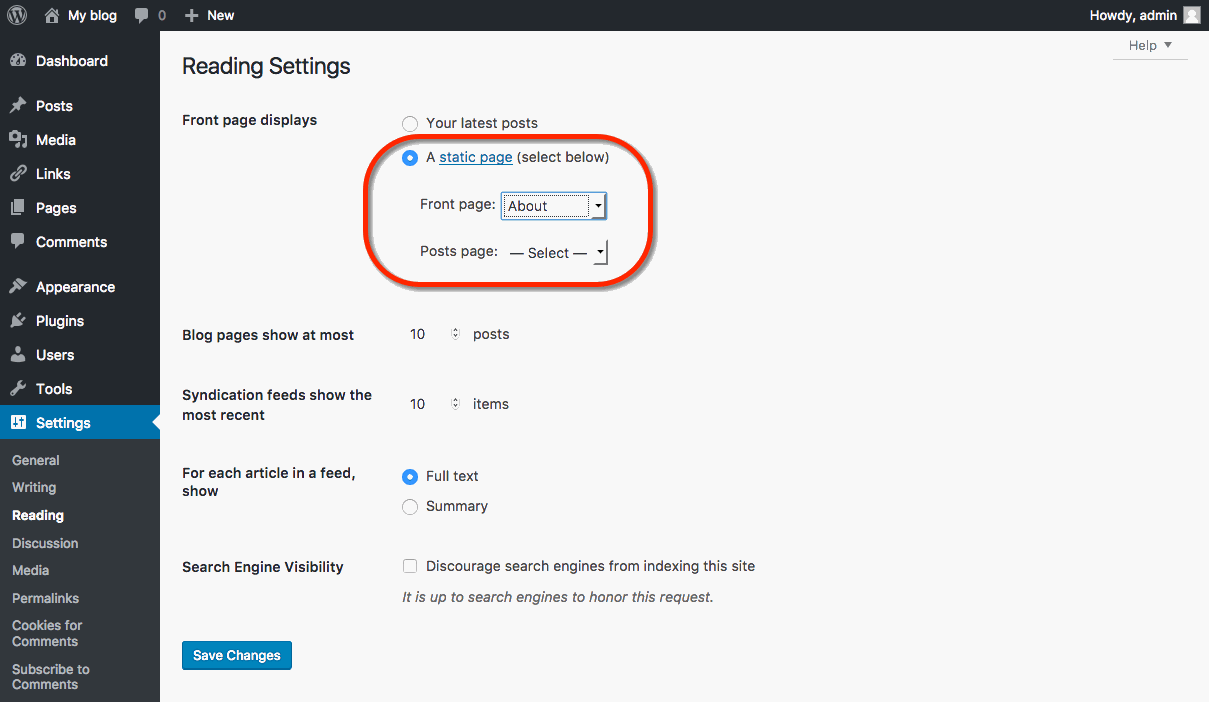
- But wait. What will happen to your blog posts? Most people will want them as the “dynamic” part of your site. First, create a new Page.

- Title it Blog (you can title it whatever you want but Blog is common and descriptive). Leave the page blank (don’t type any text in the edit box) and Publish it.

- Now go back to Settings > Reading. Under the static page area choose Blog from the Posts page drop-down.
- Click the Save Changes button. Now your “home” page will actually display the About page. You will also have a Blog item in your menu (depending on your theme, you may have to customize your page display to see pages).
- If you click on the Blog menu item, you will then see your blog posts. Notice the /blog added to the web address.

7.Permalinks
Part of the popularity of WordPress is how easily it makes a website functional and yet attractive. One of the smaller details that you might want to adjust is how the addresses to your blog posts are structured. Permalink is the name given to the address of an individual blog post because they are “permanent links”. For this example, the web address we’ll use for this sample blog is yourdomain.sites.grinnell.edu. The link to the first post, titled “Hello World” may be structured in many ways. The screenshot below shows one way: “http://yourdomain.sites.grinnell.edu/blog/uncategorized/hello-world”.
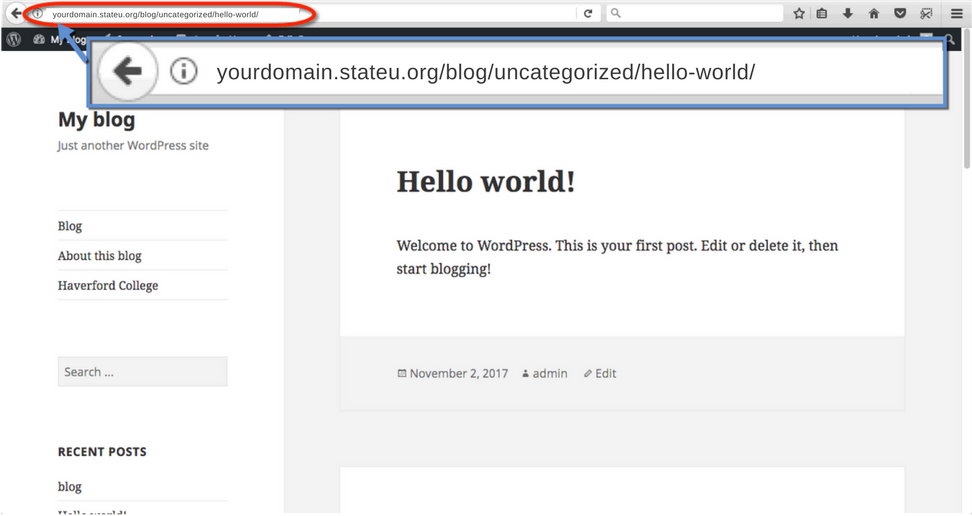
With WordPress, you have many options to form the links to posts, and you can change them to work for your particular content.
- To change the permalink structure, start by going to the Dashboard.
- Next, go to Settings > Permalinks. By default, your blog will use a “custom structure” that includes a category select and the name of the blog post.

- If you are not using categories, or prefer a different look to your blog post addresses, there are several choices under Common Settings. A popular choice is to use the Post name choice, which is a bit more informative. So our post titled “Hello World” will have an address of “http://sstrauss.sites.grinnell.edu/blog/hello-world”.
- If you want to have the date as part of the address, you can choose Day and name or Month and name. You can also change the structure of category and tag names under the Optional section.

- Finally, when you write a blog post, you have the option of editing the permalink for an individual post. Just click the Edit button (underneath the Title field).

- Then type in whatever is appropriate (and hasn’t been used yet). Generally, you want to make it as simple and short a word, or words, as makes sense.
8.Custom Menus
- Start at your site’s Dashboard and choose Appearance the Menus.

- In the Custom Menus interface that appears, type a name for your menu. This can be anything you want. It doesn’t get displayed anywhere; it’s used by WordPress to identify and place your menu. Once you’ve typed the name, click Create Menu.

- You’ll now be presented with a screen that includes a section titled Menu Settings. This is where you’ll indicate where you want your menu to appear in your theme. The number of locations available depends entirely upon the theme you choose. In the example shown below, there are two areas available; we’ve chosen to place the menu in the Top primary menu area which we know corresponds to the header menu. You may need to experiment a bit in order to find out where your menu will appear in your theme. You can always change this location later by coming back here and clicking the Manage Locations tab.

- Now that you’ve set up your menu and assigned it to a location, you can begin to add links to it. On the left-hand side of the screen, you’ll see what content is available to add. On the right-hand side of the screen, in the Menu Structure area, you can arrange and organize your links.
- By default, you may not see everything that is available to you to add to your menu. For example, posts can be added to menus, but they’re not usually displayed by default. To make more content available, click the Screen Options tab at the top of your WordPress screen, and then click off the check boxes that correspond to additional content.

- To add content to your menu, simply check it off on the left, and click the Add to Menu button.

- Your new content will appear on the right, and you can drag items in the order you want them to appear. Drag items to the right to indent them under other items. This will usually make them appear as drop-down items in your menu.
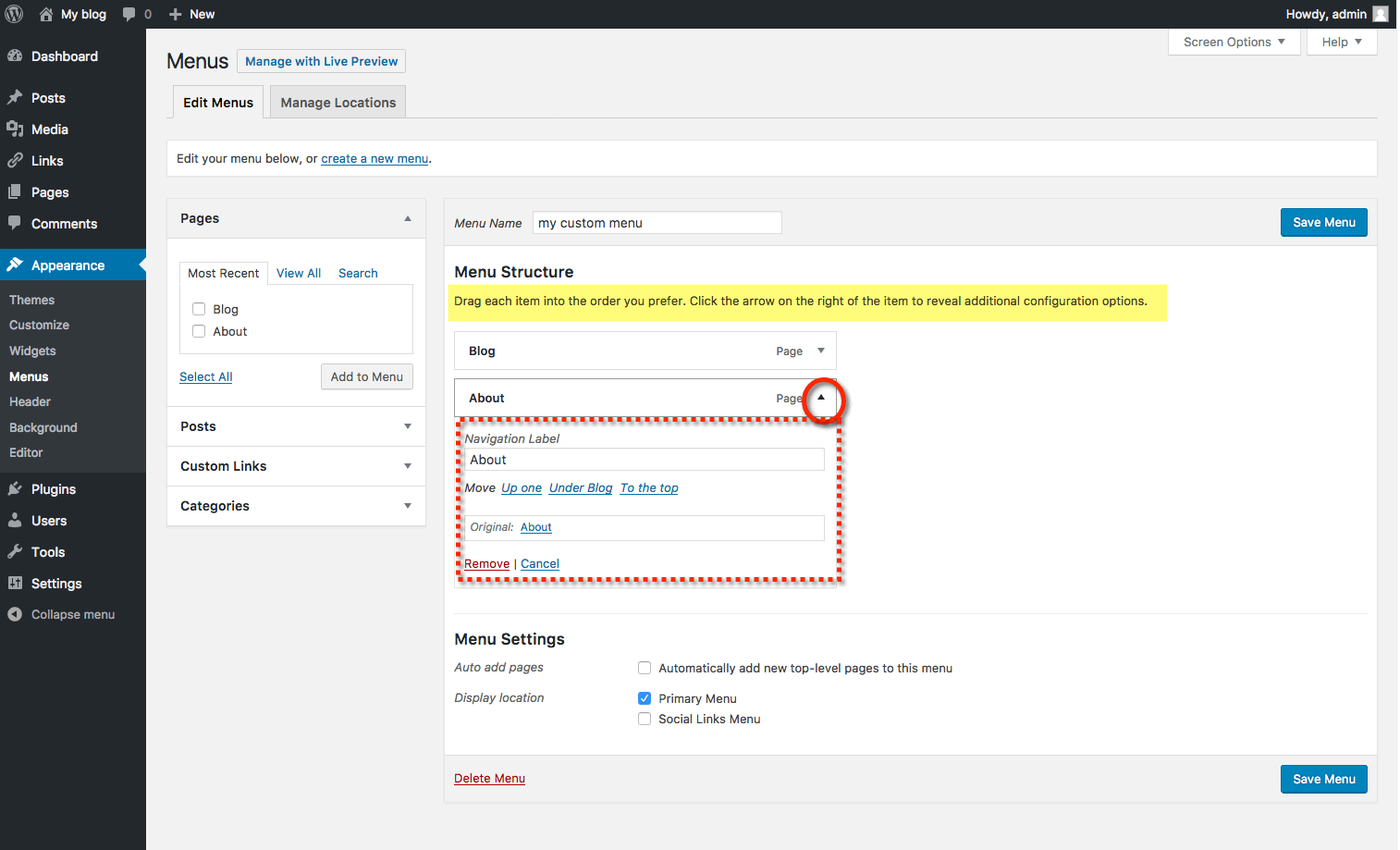
- You can add custom links to your menu by clicking the Links section on the left. In the short form that appears, enter your link’s URL, and a text for the link. Click Add to Menu to move it to the left.
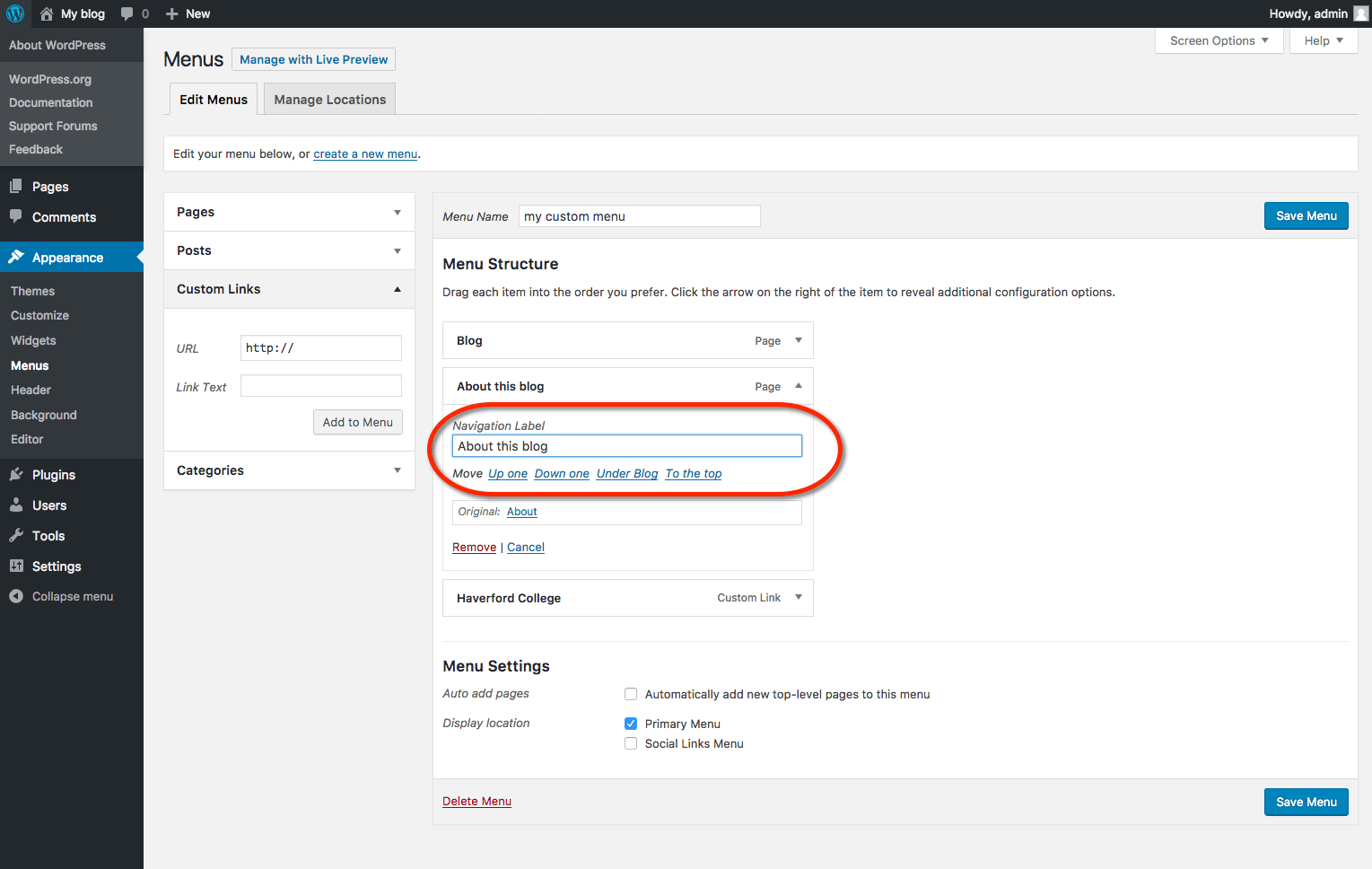
- Note that you can change the link text of any item you add to your menu. This can be helpful if you have a page with a long title, and you’d like the link to not take up so much space. You can abbreviate the title in the Navigation Label section, and that shorter text will become the actual menu link.
- When you are done, make sure you click Save Menu.
Other Notes about Menus
When you add a Category or Tag to a menu, the link will take your readers to an archive of all the posts on your site that use that category or tag. This can be a very useful feature for organizing your content when you’re using posts to share your work.
In addition to assigning Custom Menus to theme areas, there is a default Custom Menu widget that you can put in the sidebar of your site. This is useful for creating smaller, customized navigation for your site.
If you forget to click Save Menu after making changes to your menu location or content, you will lose your work!
9.Widgets
Widgets are a more advanced feature of WordPress that allow you even more control over the content on your site. In essence, widgets are small containers of content that can be placed in various areas of your site. Where you can place widgets depends entirely on the theme you are using. Many (most) themes include at least one “sidebar” into which you can place widgets. Some themes include additional “widgetized” areas. The best way to find out what areas are available to you is to go to Appearance > Widgets and take a look at the areas listed on the right. Each widgetized area will appear as a box on the right. In the example shown below, the theme contains three widgetized areas: Primary Sidebar, Content Sidebar, and Footer Widget Area.

On the right, you will see a number of widgets available to you. WordPress comes with some default widgets. Other widgets might become available when you have a particular theme activated. Finally, some plugins provide additional widgets to you.
Widgets can present all different kinds of information. The simplest widgets allow you to add text to your site. But you’ll also find widgets with many options that you can set to display dynamic content or to interact with other services. Below is a list of the default widgets available in WordPress.
When you’re ready to start using widgets, all you need to do is drag them from the right-hand side of the Widgets interface into the boxes on the left. WordPress will immediately save them, but you may need to set some options
Default Widgets
-
Archives: Shows a monthly listing of your posts.
-
Calendar: Shows a calendar view of your posts.
-
Categories: Shows a list of all of the categories on your site.
-
Custom Menu: Shows a custom menu that you’ve set up with WordPress’ Custom Menu interface.
-
Links: Shows your links.
-
Meta: Shows links to your RSS feed and your login.
-
Pages: Shows a menu of all of your pages.
-
Recent Comments: Shows the most recent comments on your posts.
-
Recent Posts: Shows your most recent posts.
-
RSS: Allows you to show content from an RSS feed.
-
Search: Provides your users with a search box.
-
Tag Cloud: Shows a “cloud” of the tags/categories on your site.
-
Text: Shows whatever text you enter.
-
10.Plugins
WordPress has a lot of functionality built-in, but occasionally you might find a specific need that isn’t a part of the default software. To accomplish this, WordPress has a plugin architecture where developers can create plugins that add additional functionality to your site. From simple photo galleries to site statistics, to automatic Twitter and Facebook sharing of posts, there is practically a plugin for whatever you need for your blog (over 58,000 at the time of this writing). Sites at Grinnell provides a variety of useful plugins as part of the standard WordPress installation. To start using and installing plugins of your own, just follow these simple instructions:
- Log in to your WordPress dashboard.
- From the left side menu, locate and click plugins.

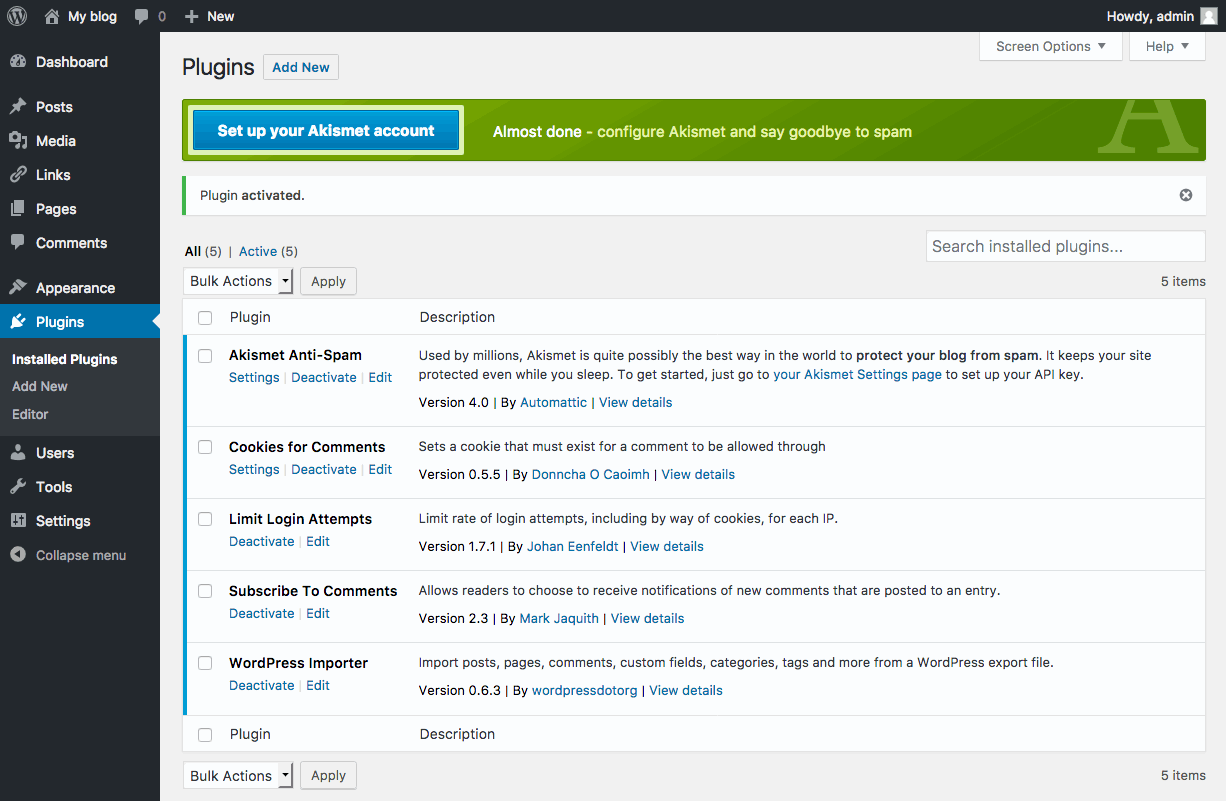
- You will be given a list of all your currently installed plugins. From this menu, you are able to activate and disable specified plugins by using either the single plugin options located under each plugin name. Or you may use the bulk action drop down menu to simultaneously activate/disable multiple plugins by checking desired plugins. Additionally, you may also sort through installed plugins using the sorting options above the bulk action menu.

-
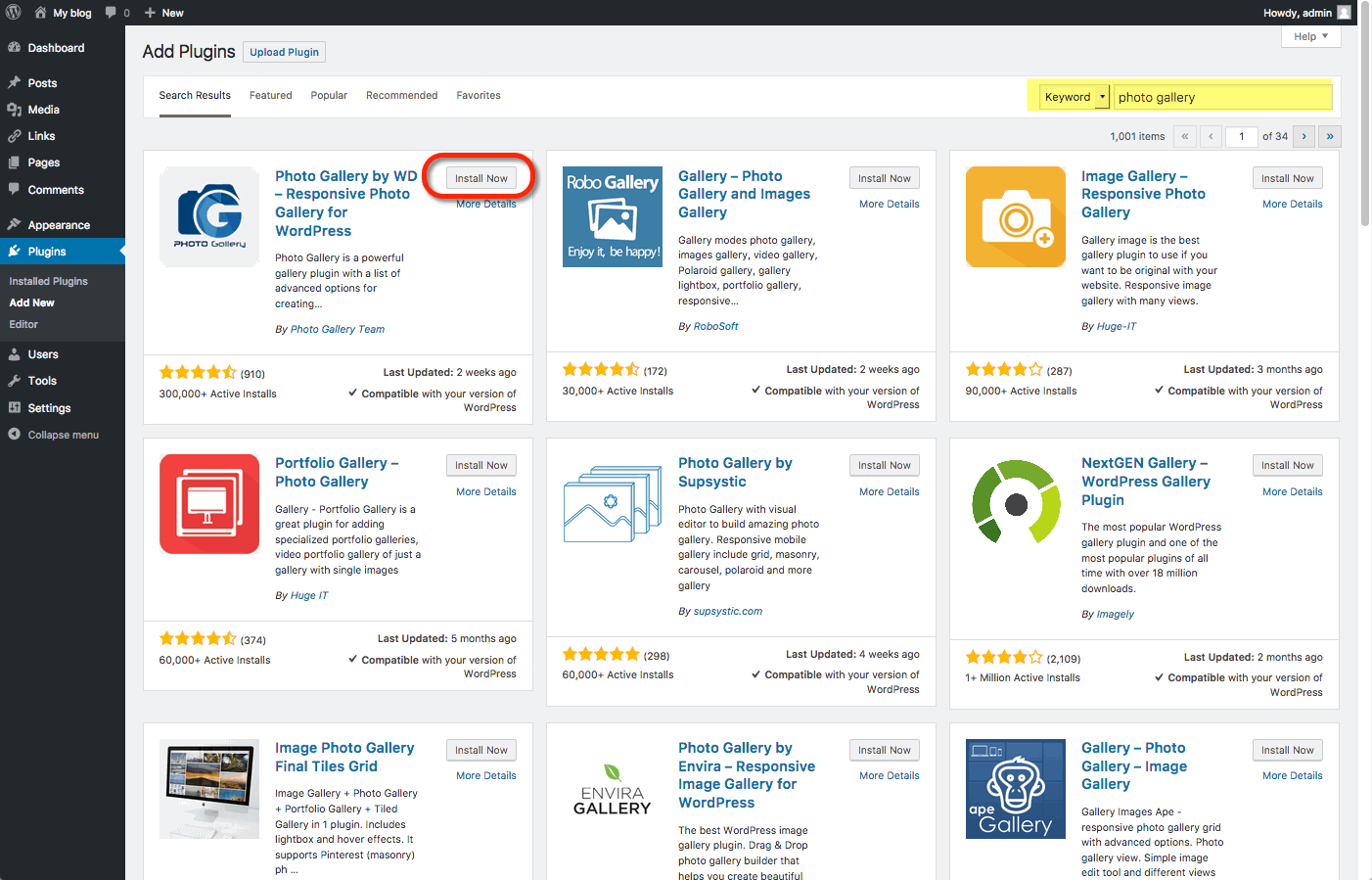
To install a new plugin click add new either from the plugin sidebar or the main plugin menu, you will then be redirected to a search engine where you can search using general or specific terms to find plugins. For example, searching “photo gallery” brings up various plugins from different developers.
Once you find your desired plugin to install it hit install now, which will automatically install the plugin and prompt you if you would like to activate it now or return to the menu.
After installing your plugin be sure to visit the developers’ website if you have any additional questions about how the plugin works, as some plugins may require certain codes or other actions to be used properly.
Some plugins will have their own settings page located under the settings or tools categories, other plugins will break out their own menu item on the lefthand side of the dashboard. Sometimes it won’t be explicit how the plugin interacts with your personal site, so it’s important to make sure you’ve read the documentation available on the plugin’s website.


12.iOS & Android App
You can download the WordPress app from the iOS App Store or the Google Play Store for your mobile device.
Screenshot Setup Tutorial:
- When you open the WordPress app, tap on Add Self-Hosted Site:

- Then, you will be able to enter your WordPress site credentials:
These credentials come from your Installatron page of WordPress. To access these credentials, first find the applications you added with Installatron by clicking on the My Apps icon.
- Next, click the title of your installed instance of WordPress:

- From here, under the overview tab, you can access your WordPress site credentials. You may change your user password by filling in the field next to password, scrolling down, and clicking the Save all button. Note that this sometimes takes a few minutes, so even if it doesn’t look like anything is happening, do not refresh your page after clicking save.

- With these credentials, enter them into the WordPress App along with the url for your WordPress website and select Next.
- On the next page, you will see all of the WordPress websites you have added to the WordPress App. Continue to the site you just added.
- To start a new post, tap on the Pencil Icon:

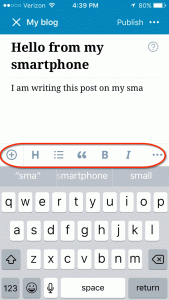
- On this page, add your Title and Content. You can edit the properties of text by selecting the text and the different Text Property Buttons:
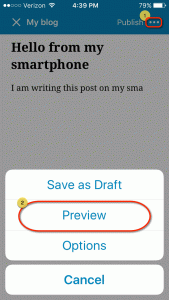
- To view the progress of your post, select “…” on the top right of the screen and select Preview:
- When finished, select Publish:
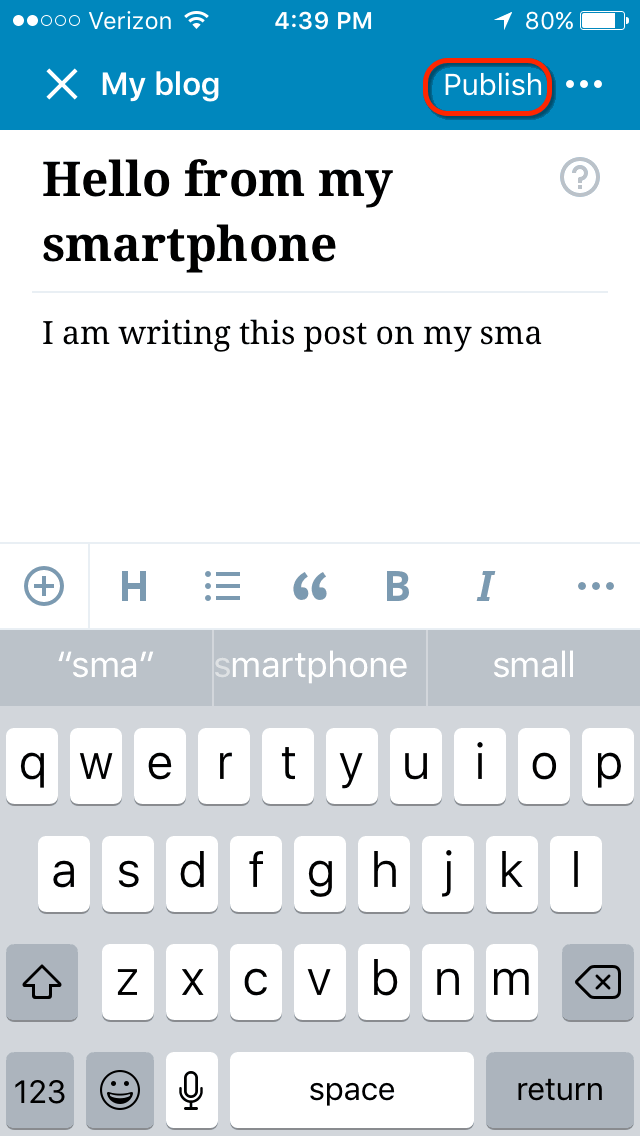


Now when you visit your WordPress webpage, you will see your new blog post!