Accessing Your Files through the File Manager

Your Grinnell College cPanel includes a File Manager that allows you to interact directly with the files stored in your web hosting account. This can be useful if you want to upload software that cannot be automatically installed via the Web Applications section of your cPanel, if you need to change the name or permissions of a file or group or files, or if you want to edit a plain text file. To access your files via the File Manager, use these steps:

  1. Login to sites.grinnell.edu with your Sites at Grinnell College username and password.
    Screenshot of the Sites.Grinnell homepage, with the "cPanel Dashboard" menu item circled
  2. Once logged in, you’ll be on the homepage of your cPanel. The easiest way to navigate your cPanel is by utilizing the search bar in the top right panel. Search File Manager. When you press enter, you will be automatically redirected to the File Manager.  You can also find the File Manager icon under the Files section.
  3. On the left side of the “File Manager” window, you’ll see a navigation menu containing the file structure of your web hosting account. More information about the contents of these files and folders can be found in the File Structures and the File Manager documentation article.
  4. In the navigation menu, choose the public_html directory. This will take you directly to the folder that contains the files associated with your website(s). You’ll notice your current location (the public_html folder) is bolded and highlighted in this menu. Click the [+] (expand) icon next to a folder to see what subfolders it contains, or click on the name of the folder to view all of its contents in the file browser on the right side of the page. You can also navigate through the folders in your account by double-clicking on them in the menu on the left side of your file manager.
  5. To select an item, click once on its icon in the file browser. You can also use the “Select All” button above the file browser, or your computer’s keyboard shortcuts (Shift, Command, Control, etc), to select multiple items from this list.
  6. Depending on what you have selected, different options will be available to you in the action menu across the top of your file manager. For example, if you have selected a folder, you can rename it or Change Permissions on it.
    screen shot of file manager tools
  7. If you know exactly what location you want to skip to within your web hosting account, you can type it into the box directly above the navigation menu and click Go.
  8. Alternatively, if you know the exact name of the file or folder you are looking for, but not its location, you can use the Search box to find it.screen shot to find file by name

Migrate to Reclaim Hosting

Step One: Signing up for an Account

The first step will be to sign up for an account at Reclaim Hosting. This link will take you directly to their Student/Individual Hosting plan option.

-If you already have a Top-Level domain (i.e. yourdomain.com) choose the I will use my existing domain and update my nameservers option.

-If your current website content exists on a subdomain (i.e. yourdomain.sites.grinnell.edu), select the Register a New Domain option.

-Enter a new top-level domain name

Complete the sign-up process/pay invoice. If you’d like to take advantage of a 10% discount, enter the promo code reclaim4edu.


Step Two: Let Reclaim Hosting Know

Send a support request to support@reclaimhosting.com with the following message:

Hello Reclaim Hosting Support,
I am graduating from (your school) and I would like to migrate my account, (your domain), to Reclaim Hosting. Please let me know if you need anything else from me.
Best,
(Your Name)

A member of Reclaim Hosting support will respond & help you get your account migrated within 24 hrs.

Omeka

Omeka is an open-source web application that can be used to create and display online digital collections. Developed by programmers at George Mason University, Omeka was designed to be user-friendly, both during installation and setup and during daily usage.

You can learn how to use this application in the official Omeka Support Documentation. This support guide will help you get started and begin creating your Omeka site.

Installing Applications with Installatron

Installatron is a script installer that allows you to quickly and easily install Web applications to on the Web space. By default, when you use Installatron, the application you add will be automatically upgraded whenever a new version is available (and a backup will be kept, just in case).

Installing Applications Using Installatron

  1. To get started you’ll need to login to your control panel by going to https://sites.grinnell.edu/dashboard/.
  2. Here you’ll log in with your Sites at Grinnell College username and password. You can also access the control panel by clicking “cPanel Dashboard” on the https://sites.grinnell.edu homepage
    Screenshot of the Sites.Grinnell homepage, with the "cPanel Dashboard" menu item circled
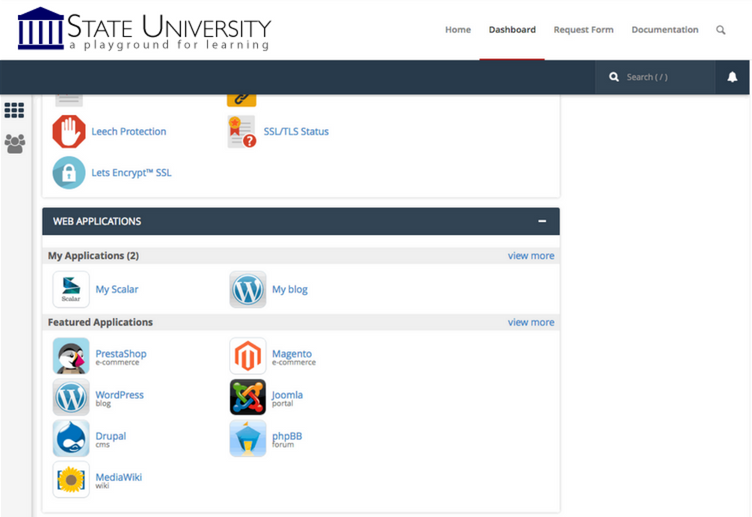
  3. Once logged in you’ll be on the homepage of your control panel (cPanel). You will need to scroll down until you see a section of your cPanel labeled Web Applications. Within this section, you will see a link to the Installatron which you should click. Or, you can type “installatron” (without quotes) into the search bar.  When you press enter you will automatically be redirected to the Installatron page.Screenshot of cPanel Web Applications section
  4. A listing of all of the applications you can install by default in Installatron will appear. Navigate to the one you want to install, and click the icon.
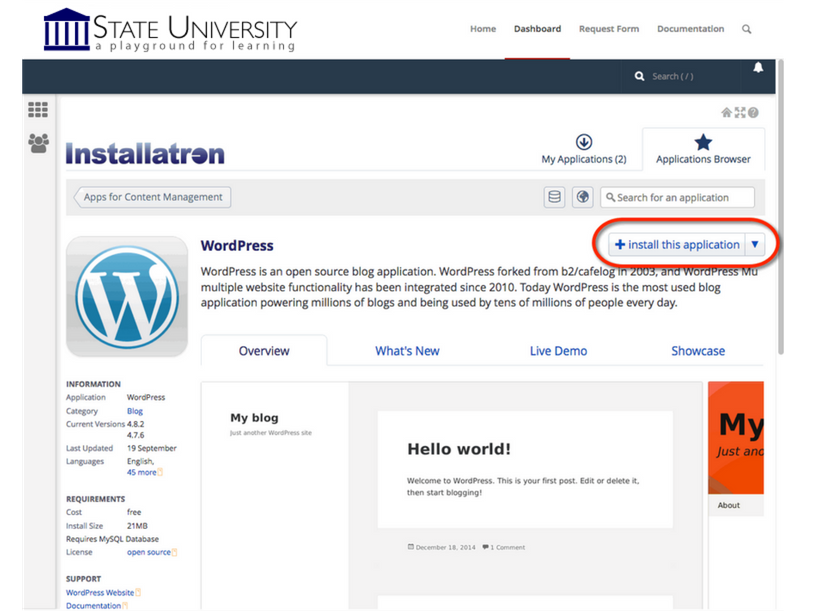
  5. After clicking the icon, a page will appear with information about the application, links to resources, and a link to install it.
    Screenshot of Installatron WordPress installation page
  6. Click Install this application when you are ready.
  7. A page will appear with a number of settings you can choose/change. The image below shows these settings; here is a rundown of them:
    Screenshot of Installatron application installation settings
    • Location: You’ll need to choose where to install your new application. You can install it at the root of your domain or in a subdomain (which you need to set up first). In addition, you can place your application in a folder (in either your root domain or a subdomain)
    • Version Information: You can choose a version of the application. Generally, we recommend choosing the default version. It is likely to be the most recent, stable release.
    • Updates & Database Management: By default, the system is set up to automatically upgrade (and create backups upon upgrading) all applications. In addition, by default, the database will be set up for you automatically. We recommend NOT changing these options.
    • Username/Password: An username/password will be automatically generated for you. You can choose to change this if you like.
    • Click Install: After installation, you’ll be taken back to the main Installatron page, with details about the application you just installed. At any time you can come back here to review the application details, back it up manually, or uninstall it.

To get to your new site, you can click the “website” link. What’s more, with certain applications you can use this space to log in to the admin area.

In addition, you’ll have received an email with your username/password and a link to your new site.

Mediawiki

MediaWiki is an open-source publishing platform that can be used for creating a collaborative document repository. It’s the software that drives the Wikipedia website.

You can learn how to use this application at the official MediaWiki Help Pages. This support documentation wiki will show you how to manage all aspects of your wiki, including customizing its appearance, editing content, and changing user settings.

Registering a Domain

Grinnell College currently utilizes both subdomains of .sites.grinnell.edu and top-level domains (a .com, .net, .org address) for the initial signup. You have the option to start with a free subdomain and then later decide you’d like to purchase a top-level domain after using the space.  You can do this by registering a domain with a service provider (we make a recommendation below, but any domain provider should work) and adding it to your space as an Addon Domain.

To start you’ll need to get the domain registered. When choosing a domain we recommend keeping it all lower-case, avoiding hyphens, keeping it short, and of course it will need to be a unique address. Reclaim Hosting has made the process of registering a domain quite simple, and the domain will work with very few additional steps due to the integration they have with our hosting system. To register a domain, click here and type in the domain you’d like to purchase:

screenshot of domain registration at reclaim.com

After ensuring the domain is available for purchase you’ll be prompted to select whether you’d like to protect the contact information associated with the domain. This option (referred to as ID Protect) used to cost an additional $7, but it is now free. We recommend checking this ID Protect box to protect your contact information.

You’ll also be prompted for nameservers for the domain. If registering the domain through Reclaim Hosting you can leave these with the default. If you decide to register the domain elsewhere, you’ll want to point the nameservers to ns1.reclaimhosting.com and ns2.reclaimhosting.com in order for the domain to work with our system.

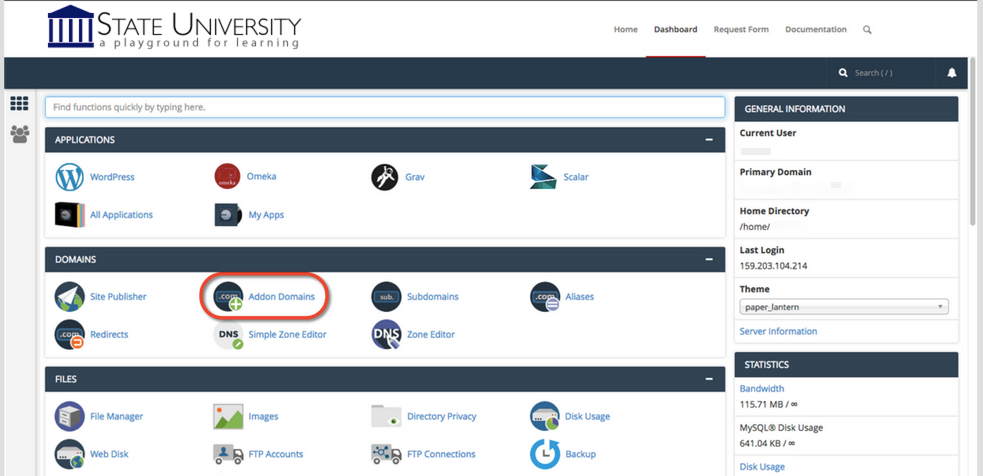
Screenshot of Addon Domains button under Domains section in cPanel

Once you’ve completed the checkout process with payment information the domain will be registered automatically. The last step is to add it to your existing account here at Sites at Grinnell College. To do that you’ll log into your account at https://sites.grinnell.edu/dashboard. Navigate to your cPanel > Domains > Add-on Domains.

Screenshot of Addon Domain creation settings

-On the following page, type your newly purchased domain in the new domain name field. (The subdomain and Document Root fields will populate automatically.)

-You can change the document root (the directory of your files) if you wish. Some like to remove the “.com” from the Document Root field for the convenience when using FTP.

-The option to create an additional FTP account is present but not necessary.

-Once the domain is entered click Add Domain to add the domain to your hosting account.

At this point, the domain will now be hosted in your account and you can use it to install software, upload files, and any number of other actions available to you in cPanel.

WordPress

WordPress is an online, open source blog application. Powering over 30% of the web, WordPress is easily one of the most popular content management systems (CMS) in existence today. WordPress forked from b2/cafelog in 2003, and WordPress MU multiple website functionality has been integrated since 2010. You can read more about the WordPress backstory here.


Social Media

As you begin to build out your digital presence you’ll probably start to think about social media in some form. In fact it’s likely that you already have at least one, if not more, social media accounts (Facebook being the most popular to date). Everyone uses social media in different ways, and although it’s often interesting to see people break the boundaries of the “social norms” of a specific online community, this article will focus more on the accepted use cases for specific social networks and how they can help you build your digital presence. This is by no means a comprehensive “How To” guide for Twitter or Facebook, but a good starting point for thinking about where you best fit into these online communities.

Facebook

The majority of folks that will read this likely have a Facebook account. With over 2 billion active users it’s by far one of the more popular social networks. Many treat Facebook as a semi-personal space, one reserved for family and friends to share photos and highlights of what’s happening in their lives. Facebook also supports “Groups” for sharing amongst a smaller set of individuals regularly, and “Pages” which are less personal and more public-facing profiles meant for organizations and businesses. There are plenty of applications that make it easy to publish a link to the work you do on your blog and your participation in other networks back into your Facebook profile.

In general, it’s a good practice and can often lead to interesting conversations with different groups of folks. This practice of publishing elsewhere and then feeding into Facebook is desired over the alternative, using Facebook for all content and then pushing it out to other communities. The main reason for this is that privacy concerns over how different people can view content on Facebook have changed often enough to leave users concerned. There’s also never any certainty of sustainability with any of these social networks (remember MySpace or Friendster?) no matter how popular, so publishing in your own space and then pushing out to others makes a lot of sense. The key takeaway is that Facebook is a great personal network and can also be the starting point for some of these larger professional discussions should you decide to use it that way.

Twitter

While no longer the new kid on the block, Twitter has only relatively recently started to gain momentum. It doesn’t have nearly the same user base as Facebook (though there are about 500 million accounts to date) and the way people use it is very different. Twitter has focused on the short status message from the start, before Facebook even integrated the idea into their platform. Users are limited to 280 characters. It’s a conversational platform for interacting with people. It’s used heavily at conferences and many choose this as a social network for really networking with peers and others in their community as well as people they might not ever meet in real life. You can follow as many people as you want and it’s a great way of having a stream of information about “what’s happening” with people and groups you’re interested in.

One powerful development of Twitter is that celebrities have begun to embrace it as a way to speak directly to their fans without having the message interpreted through other media and journalism with a slant. The ability to search various topics or hashtags (keywords) and see a running stream of what people are saying about that topic is also a very powerful way of gauging reaction to ideas and events. It’s a great idea to experiment with a Twitter account by signing up, adding a profile picture and information about yourself, following a group of people, and interacting with it daily. While the gratification may not be immediate, it’s one of those social networks where the more you put into it the more you will get out of it.

LinkedIn

LinkedIn is the professional resumé of social networks. It mixes the ability to keep an updated resume of where you work and what your accomplishments are with a social aspect of having people recommend you and comment on your work. Most users find LinkedIn helpful not as a day-to-day network they use, but rather when they’re searching for a new job and want to find people they know that might have connections. The old saying “It’s who you know” when finding a job or making a connection is particularly relevant here where those connections can be exposed to you. (For instance: you may know a person who works for the company of one of Bill Gate’s sons, and the VP went to high school with you).

Summary

As mentioned in the opening paragraph, talking about social media is an ever-changing and moving target and this article can never be truly comprehensive. The goal of Grinnell College is to have you thinking more critically about where you put your content, not that you don’t participate in these networks which still have a lot of value, but rather that you own the work you create. Facebook, Twitter, LinkedIn, and others all have different audiences and the more places you push your content to, the more opportunities for discussion and feedback you’ll receive. The ability to network with an increased amount of people that isn’t reliant on face-to-face meetings is a powerful change in how we interact on the web and the value of it. As you begin to explore social media the best recommendation would be to choose a space you want to explore and really dive in. Follow as many people as possible, engage with them, respond to their work, and you’re more likely to get responses in return that start to build that sense of community for you.