Choosing Your Domain Name

Choosing your domain name is the first step in getting started with staking your claim on the web. Your domain name is a unique Web address (e.g. yourname.sites.grinnell.edu) that can be used to build out your own digital presence. As you make your choice, there are a few considerations to keep in mind:

Your Domain Name Must Be Available: Domain names must be unique, which means in order for you to claim your own, you need to be sure that it is currently available (and not being used by anyone else or any company or organization). There are lots of tools to check on domain availability, and when you sign up on sites.grinnell.edu, we’ll actually check the availability of your choice for you. If you’d like to spend some time thinking about your choice and checking availability before you actually sign-up, we recommend using whois.com.

Choose a Domain You Can Live With: You should choose a domain name that you feel you can live with for quite some time. You should pick something that you won’t find embarrassing in the future. A good rule of thumb is to pick a domain that you would be comfortable putting on a future job application.

You May Wish to Include Your Name in Your Domain: There is no requirement that your domain reflects your specific identity in the form of your first and last name. However, choosing a domain name that includes your name may make it easier for you to achieve higher rankings in search engines when someone queries your real name.

Pick a Domain you Like: At the end of the day, your domain should reflect you. Pick a domain you like and are proud of. It can reflect your interests, sports you play, or your hobby. Or it could just be your name. The “right” domain for you is the one you’re comfortable with.

WordPress Export/Import

If you are using your WordPress, you can also get an export of your posts, pages, comments, custom fields, categories, and tags.

The WordPress export is great for grabbing the content of your WordPress site so that you can import it into another WordPress host, such as WordPress.com or WordPress.org.

Note: Exports do not include plug-ins, or other site customizations.

Exporting

  1. From the Dashboard navigate to Tools>Export
    The screenshot below shows how to export all of your posts, pages, comments, custom fields, terms, navigation menus, and custom posts. However, you can also export just certain posts, pages, or media. Screenshot of the export page within WordPress

This export process generates an XML file of your blog’s content. WordPress calls this an  eXtended RSS or WXR file.

Note: This will ONLY export your posts, pages, comments, categories, and tags; uploads and images may need to be manually transferred to the new blog. If possible, do not delete your blog until after media files have successfully been imported into the new blog.

Importing

Once you have exported your posts, pages, etc., you can import them into your new WordPress site.

  1. Login to your new WordPress.com or self-hosted WordPress site and go to the Dashboard.  From there navigate to Tools>Import and click on the link to “Run Importer
    Screenshot showing where to find the WordPress Importer
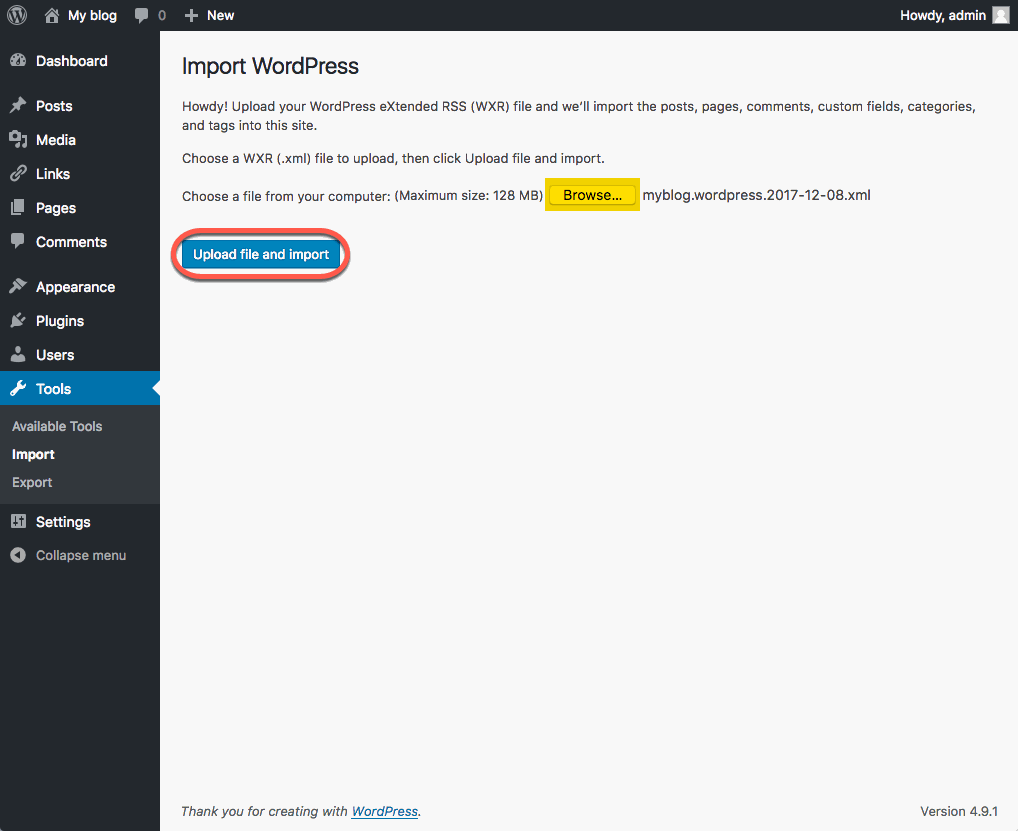
  2.  Next you will see a screen that prompts you to upload the WXR (.xml) file you generated through the export process. Browse to your exported WordPress archive and then click the “Upload file and import” button.
    Upload file and import
  3. Choose and upload your file.  You will then be prompted to assign an author to the posts that you are importing.  You can use this function to assign one author to all posts, or you can manually set the author for each post in the posts menu. Unless you have a space limit, you will also want to select the option to “download and import file attachments” before clicking the “Submit” button.
    Select desired import options and click the
  4. When your import is complete, you will see a confirmation screen.
    Import WordPress confirmation screen

Your exported content is now added to your site. If you had posts on your site prior to importing, those posts are still available.

Because the export did not include themes or plug-ins, you will need to reinstall those separately from the export/import process.

Setting Up FTP

There may be times when you need to upload files to your website in the Grinnell College web hosting environment. There are a number of scenarios when this might be necessary:

  • You’re working with an application that allows you to install plugins/extensions, but the files need to be manually added to your file manager in order to install them. (Note: This is not required for WordPress which allows you to install themes/plugins through the WordPress dashboard.)
  • You’ve developed a custom site/pages using a Web design program, and you need to upload the files you created to your file manager
  • You’re installing an application that isn’t part of applications list in Installatron.

One way to upload files is by using the File Manager that is part of cPanel. However, sometimes you’ll find it easier/necessary to use File Transfer Protocol (FTP) to move files to your site. This can be particularly useful if you’re working with a Web space where you’re not the owner (so you don’t have access to the File Manager in cPanel) or if you need to provide file access to someone else to your space on the Web server. File Manager also only allows you to upload files one by one, so if you’re working with large amounts of data then FTP will be preferable.

What exactly is FTP?

File Transfer Protocol is a method that allows you to remotely move files to a Web server from another location – usually your local/personal computer. Using a pre-defined FTP account (with a username and password), you can configure an FTP client (a program you run on your computer that allows you to transfer files via FTP.

There are lots of FTP clients that you can use; some are free and some are not. A few free ones you might consider:

For the purpose of this tutorial, we’ll show you how to set up FTP in FileZilla, (Cyberduck instructions can be found here) but you should be able to generalize these instructions to use in any FTP client.

Get Information about Your FTP Account

If you’re connecting via FTP to your own space on Grinnell College, or if you’re setting up an FTP account for someone else to use, you’ll need to start by getting the proper FTP credentials from cPanel:

  1. Login to sites.grinnell.edu.
    Screenshot of the Sites.Grinnell homepage, with the "cPanel Dashboard" menu item circled
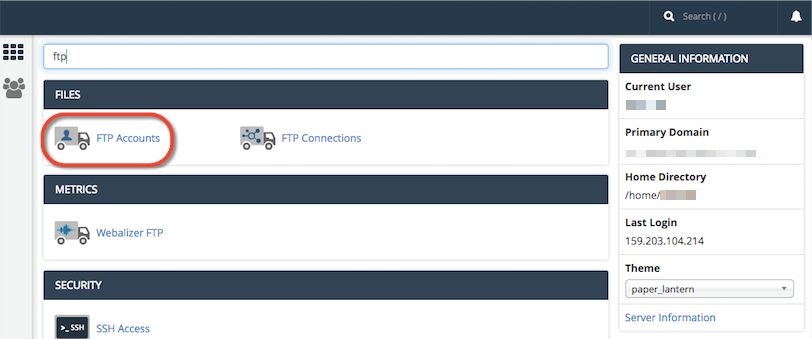
  2. In the Search Box at the top of the page, search for “FTP”, and click the FTP Accounts icon that appears.Screenshot of FTP Account button under Files in cPanel
  3. Every cPanel has an FTP account by default, and you can find those credentials by scrolling down on the FTP Accounts page. You also have the option to create a new FTP account, which can be done by filling out the Add FTP Account form with a username and password. Unless you change it, the new FTP account will be limited to a directory with the same name as the account you’re creating. You can change this to a different directory, if you want to grant this account access to a different location.  NOTE: Make sure you know/remember the password you enter. When you’re done, click Create FTP Account.
    Screenshot of Add FTP Account page
  4. Once you’ve created the new account, you’ll see it appear in the list at the bottom of the FTP Accounts page. In addition to any accounts you’ve created, in the Special FTP Accounts section, you’ll see the default FTP Account. You’ll know this account because the username corresponds to your cPanel username. This FTP account has full privileges to access all directories within your cPanel.
  5. For whichever account you need credentials for, click the Configure FTP Client link. Screenshot of FTP configuration settings
  6. Write down the username, server, and port information that appears. You will need to use this (or you will need to provide this to the person you are giving FTP access) along with the password you created in Step 3 in order to configure your FTP client.

PLEASE NOTE:

For cPanel’s default FTP account, use the following settings:

-Connect via SFTP (more secure than FTP)
-Port: 22

For an FTP account that you manually created (shown in Step 3 above), use the following settings:

-Connect via FTP (cPanel doesn’t allow an SFTP connection for manual accounts)
-Port: 21

Configure FTP in Your FTP Client

Below are links to tutorials for setting up both FileZilla and CyberDuck to connect to your FTP account.

For further assistance with FTP, read this guide.

Setting Up Subdomains

A subdomain is one way of organizing and separating content on your site. To create a subdomain, use the following steps:

  1. Log into sites.grinnell.edu with your Grinnell College username and password to access your cPanel.
    Screenshot of the Sites.Grinnell homepage, with the "cPanel Dashboard" menu item circled
  2. Once logged in, you’ll be at the homepage of your cPanel. The easiest way to navigate your cPanel is using the search feature in the top right panel. Click the Search box and type “subdomains” (without the quotes). When you press enter, you will automatically be taken to the Subdomains page. Or, you can scroll down and click the Subdomains icon under the Domains section of cPanel.
    screenshot of subdomains application
  3. Choose a name for your subdomain and type it into the Subdomain box. Just like top-level domains, subdomains can only contain numbers, letters, and hyphens, and the best subdomains are simple, short, and descriptive.
    Screenshot of subdomain creation page
  4. Once you’ve typed in a name, cPanel will automatically populate the Document root field for you. This will create a folder to contain your subdomain’s files. You’ll usually want this folder to match the name of your subdomain, so it’s easy to identify where different files live in your account. You might want to change the document root if you already have a folder in your account that has the same name as the subdomain you are trying to create, although this should be rare. Once you’re done, click Create.
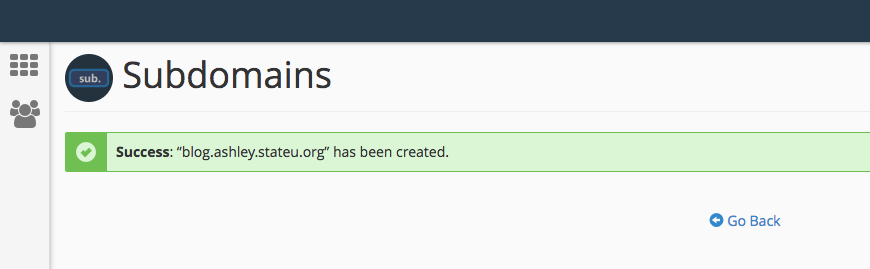
  5. Once you’re done, click Create. If everything went well, you should see a message that your subdomain was created successfully.
    Screenshot of successful subdomain creation message

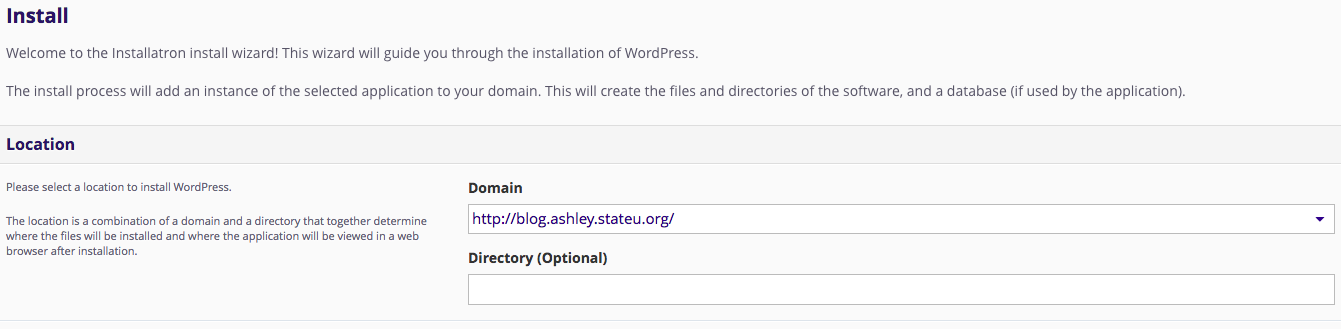
Your subdomain will now be available as an option for automatic installation of various software (WordPress, MediaWiki, etc). If you prefer to install web applications manually, you can do so in the document root (folder) you created in step 5.

Screenshot of Installatron application installation settings

Map Your Domain to Tumblr

Mapping your domain is an important part of sites.grinnell.edu; it reinforces the idea that you don’t necessarily need to host all your own applications. You should, however, be mindful of making your web presences part of a domain you control. If you would like to map a subdomain and have not yet created it, use this tutorial on creating subdomains before proceeding. To map your domain, or a subdomain, to Tumblr, use these steps:

  1. Log in and navigate to your cPanel. Click the Search box at the top, right-hand corner and type “DNS” (without the quotes). As you type, the cPanel page will begin to narrow down results.
  2. Find and click on Zone Editor to continue.
  3. Find the domain, or subdomain, you want to map to Tumblr in the list of Zone File Records. Click Manage next to the proper domain.
  4. Leave the Name, and TTL fields set to their defaults. Update the Type drop-down menu to CNAME, and the Address field to domains.tumblr.com. Click Edit Record when you are done.
  5. Visit the Tumblr website, and login with your Tumblr username and password.
  6. After logging in, click the Tumblr Settings icon.
  7. For the Tumblog you’d like to use under the Username click the pencil icon to edit these settings.
  8. Check the Use a custom domain checkbox. Type the name of the domain or subdomain you want to map to Tumblr into the box, then click Test your domain.
  9. If your domain mapping was successful, you’ll see a message that your domain is now pointing to Tumblr. Click the Save button before leaving the page. Keep in mind that it may take up to 72 hours for your domain or subdomain to correctly point all visitors to the correct location.

What Exactly is a Web Application?

In the most general terms, a Web application is a piece of software that runs on a Web server. A Web server is a just a specialized computer designed to host Web pages.

Most Web applications are comprised of two components: files and a database. When you install a Web application, you will need to make sure all of the files are copied over into the appropriate location AND that a database (and database user) has been set up to connect to those files. Often, you will have to do some configuration to make sure the application knows how to access the database.

The system we use for Grinnell College uses a special script installer called Installatron (in cPanel) that allows you to automatically install dozens of open source applications. When you use Installatron, you don’t need to worry about moving files, creating databases, or doing the initial configuration. It’s all taken care of for you.

In order to run on the Grinnell College server, Web applications must be able to run on a LAMP server, which is the particular kind of Web server that we use. Occasionally, a Web application may require additional components or modules that need to be installed on the server.

What Can You Do with Your Account?

Your ability to do things on Grinnell College is dictated to a large degree by the limits of your imagination. That said, there are some technical requirements and limitations that you should be aware of and might want to review.

To spark your imagination, here are some ideas that might help you get started:

Install a Web Application in Your Space

Grinnell College makes it very simple to install certain Web applications in your Web space. Web applications are just special software that run on a web server. Usually, they allow you to build and manage a website. The kind of site you can build depends on the type of application you install. Here are some examples of applications that you can easily install within the sites.grinnell.edu web hosting interface:

WordPress iconWordPress: WordPress is a simple-to-use blogging application. The tool also comes with a huge array of plugins & themes to allow you to create virtually any kind of website imaginable. We have guides on using WordPress here.

Omeka iconOmeka: Omeka is an open-source web application that can be used to create and display online digital collections and archives. We have information available to help you install and use Omeka here.

Scalar iconScalar: Scalar is a content management system with the idea of creating non-linear books on the web, that enables users to pull in media from various sources and juxtapose it with their own writing. You can learn more about its functions and how to install it here.

Grav icon

Grav: Grav is an open source, flat-file CMS made for folks who are looking for something a little more experimental. Grav provides a straightforward framework for creating pages and inserting media. We have additional resources for Grav here.

MediaWiki iconMediawiki: It is the open-source wiki software that runs the online encyclopedia, Wikipedia. This tool may be right for you if you’re interested in publishing documents and then collaborating with others on them. Find our guides on Mediawiki here.

These are just a few of the open-source applications that are available to you in your Grinnell College web space.  We encourage you to read more about what Web applications are and which ones are available to you through this project.

Organize Your Site with Subdomains and Folders

Through this project, you’ve received a domain name that you can actually subdivide and organize anyway you like. One easy way to organize your domain is to create subdomains, in which you can then install other applications. In addition, you can just set up subfolders for your site (which can also have their own applications installed in them). Here’s an example of how you might organize your site (using the subdomain vs. the subfolder approach)

Subdomain Approach Subfolder Approach
yourdomain.com (“root”) Install WordPress as your “main site” yourdomain.com (“root”)
course1.yourdomain.com Install a second WordPress instance for a course you’re taking yourdomain.com/course1
photos.yourdomain.com Install ZenPhoto for a public photo gallery of your photos yourdomain.com/photos
docs.yourdomain.com Install MediaWiki for a club you belong to that wants to collaboratively edit its bylaws yourdomain.com/docs
files.yourdomain.com Install OwnCloud so you can access your files on your laptop and at work yourdomain.com/files

This is just an example of a way to organize your site and then use different sections to do different things. There is no one solution to this challenge, and what you do should be driven by what makes sense to you. To start, you may just want to install one thing at the “root” of your domain, and then let the rest evolve as you get to know more about what’s possible.

Map Your Domain (or a Subdomain)

If you already have a digital presence that you’d like to pull into your Grinnell College space, domain mapping is an option you may wish to explore. This allows you to assign your domain (or a subdomain) to another service. Some services that work with domain mapping are:

When you map a domain, users who visit your URL will automatically see your space on one of these services. It’s a great way to incorporate your activity elsewhere into your domain, and it might be a good first step if you’ve already established a presence somewhere else and just want to point your new domain to that space.

Privacy

What you add to your sites.grinnell.edu webspace rests entirely with you. You can choose not to pick a domain that reveals your name. You can use a pseudonym on your actual site. However, when you sign up through the default process, your name does get published as part of the public record about your domain name. Anyone can find it by looking up details about the ownership of that domain name through a public “Whois” request.

This is NOT an issue if you’re already planning on using your name openly on your site (in your domain name or elsewhere). This option is aimed, specifically, at those who, for whatever reason, feel they want to take every precaution to hide their identity on their site.

Understanding Accounts & Passwords

One aspect of sites.grinnell.edu that users may find a bit complicated at first is understanding the different accounts (and associated passwords) that you can manage as part of your participation in the project. This article outlines the types of accounts that you are likely to have, what they are for, and how you go about resetting passwords on each of them.

Your cPanel Account

When you first sign-up for your domain and hosting, a cPanel account will be generated that provides you with access to your slice of the sites.grinnell.edu web server. Your cPanel account is automatically associated with your Sites at Grinnell College username. Therefore, your Sites at Grinnell College username will grant you access to your cPanel account.

Your Application Administrator Accounts

Every time you install a new application in cPanel, an Administrator Account for that application will be created. You will likely use these accounts very often – every time you need to login to your application to manage the associated website, you will use this account.

For example, if you install WordPress to manage your Web site, every time you need to add content to WordPress, change your theme, approve comments, etc. you will use this account to login.

Usually, you will be given the opportunity to choose the username and password for that account. We recommend choosing something that you are likely to remember but that is strong and secure.

Upon installation, you will likely receive an email confirming the user-id/password combination you chose. It will also have information about how to access the login page for that application. You may wish to make sure you don’t delete this message.

Depending on the application you’re working with, managing and resetting the password for this account will vary. If you’ve used Installatron (in cPanel) to install the application, however, you can always review the account credentials:

  • Login to cPanel through https://sites.grinnell.edu/dashboard/
  • Click the Installatron icon in the Software/Services section.
  • Find the application you installed under My Applications.
  • Click the Edit button (this looks like a blue wrench).
  • Scroll down to find the Administrator Username and Password.

In addition, most applications should have some kind of password reset link on the login page. For more information on resetting your application password through Installatron, click here.

Other Types of Accounts

In addition to the account types outlined above, there are a few other kinds of accounts you may have as part of sites.grinnell.edu:

  • When you sign up for subdomain/top-level domain on Stateu.org, cPanel will automatically create an FTP account for you by default. You’ll also have the option of manually creating your own FTP account. You can learn about their differences here.
  • Application User Accounts: In addition to the Administrator Account that you set up when installing an application, most applications will also let you set up user profile accounts within each application.

Signing Up

Review the Guidelines

Before you get started, we recommend that you review our information about Choosing a Domain Name.

The Sign-Up Process

Once you’ve reviewed the guidelines, you can proceed to the sign-up page.

  1. Click the “Get Started” Button
    Screenshot of Get Started button
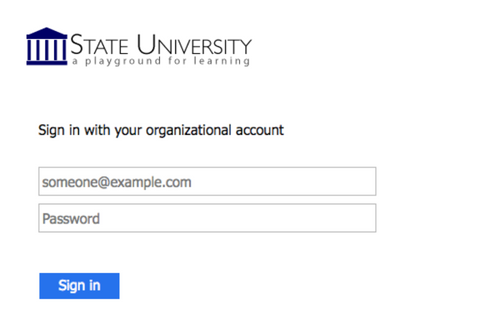
  2. You will be redirected to login for verification. You will use your Sites at Grinnell College username and password to log in.
    Screenshot of organizational account log-in page
  3. You are now ready to create a domain. To start, you must first sign up for a free subdomain (i.e. yoursite.sites.grinnell.edu). Directions for purchasing a Top Level Domain (i.e. yourdomain.com) will be provided further down.

Screenshot of subdomain selection form

Option 1: Free Subdomain

For no cost, you can create a subdomain of sites.grinnell.edu.

To create a free subdomain of sites.grinnell.edu, leave this default option selected and enter the subdomain name you want for your website. When you’ve found an available subdomain, click the button labeled “Continue.”

Screenshot of subdomain selection form "Continue" button

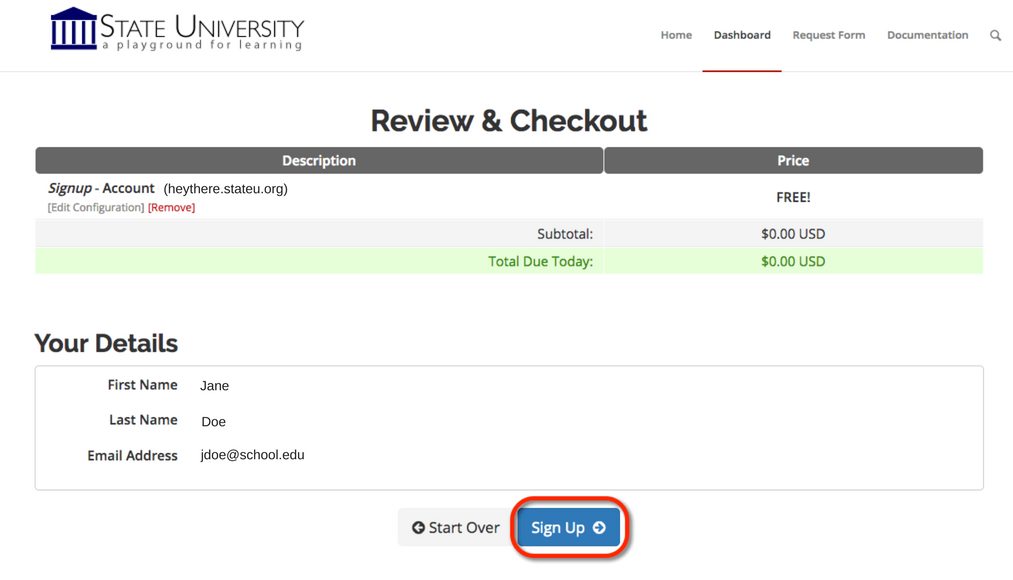
Confirm that you like the name you selected. If you do, click the “signup” button. (If not, click the “start over” button, and repeat the above step.)

Screenshot of sign up and subdomain registration checkout pageYou should now see a screen confirming that your subdomain is ready. After a few seconds, you will see the regular cPanel options.

Screenshot of domain registration confirmation page

Option 2: Buy a top-level domain from Reclaim Hosting

It is easy to create your own top-level domain. This allows you to select a URL for your website that is easy to remember and share.

While you are at Grinnell College, this is available for a nominal cost (currently $15/year). You can continue to use this domain after leaving Sites at Grinnell College, although the cost may increase.

To register a top-level domain log into your newly created cPanel, navigate to the Domains section, and click Register Top-Level Domain.

Screenshot of cPanel Domains section highlighting "Register Top-Level Domain" button

This panel offers a step-by-step guide to registering and adding a new top-level domain to your new cPanel account.

Option 3: Connect an existing domain to your cPanel

If you already have an existing domain that you’ve previously registered elsewhere, simply point your domain’s nameservers to ns1.reclaimhosting.com and ns2.reclaimhosting.com.