
1.Arts & Humanities Portfolio
This walkthrough was created by Grinnell’s Digital Liberal Arts Collaborative (DLAC). Reach out to DLAC if you want support in building out your portfolio!
2.Logging In to Your Portfolio
Once you have an account, you can log in to the back end of your Sites @ Grinnell domain by navigating to https://sites.grinnell.edu and clicking the cPanel Dashboard menu option. You will be logged in to your domain via single sign-on.
From within cPanel, you can access your portfolio by clicking My Apps and then clicking the second link under your portfolio title (ending with /wp-admin/), which will log you in to the admin back-end of your portfolio website.
Sites @ Grinnell keep regular back-ups (of the last 30 days of content) so have no fear in case of any glitches or issues! We will be able to restore your content using the latest backup.
3.Requesting a Portfolio Through Sites @ Grinnell
Sites @ Grinnell is a platform that allows Grinnell College community members to host their own domains at no cost (through the College’s partnership with Reclaim Hosting), providing web hosting that users can control and the freedom to host, explore, and play around with a wide variety of open-source web applications.
You can use Sites @ Grinnell to build a portfolio site of your own: simply navigate to https://sites.grinnell.edu/ and click the “Request a Domain” button to make your request. You can indicate that you would like a WordPress site with the Art Portfolio Template installed on it, and you can choose your domain URL (the part that comes before sites.grinnell.edu).
4.Making Your Site Private
If you’d like to keep your site private while you’re working on it, you can use the Password Protect WordPress (PPWP) plugin, which comes pre-installed on the Arts & Humanities Portfolio template by default: the plugin makes your site (or certain site pages) available only to users with a password of your choosing.
Simply mouse over the Password Protect WordPress page from the left-hand navigation menu and click Sitewide Protection in the menu that appears when you hover. From there, check the toggle to enable password protection, set a password, and click the blue Save Changes button to save. When you’re ready to make your site public, simply uncheck the box.
Please note that while the plugin is active, site pages and content are not available publicly, but site Media Library content (such as images) are still accessible via their direct link.
5.Using Elementor to Build Out Site Pages
You will use WordPress’s Pages feature to build webpages. Pages are static (vs. Posts, which are blog posts that appear in chronological order and can be associated with tags and categories).
The Art Portfolio template uses a pagebuilder plugin called Elementor for building out page content. Elementor allows you to drag and drop content types called “widgets” onto a page, and easily organize them in different Sections, with Columns within them (Sections > Columns > Widgets).
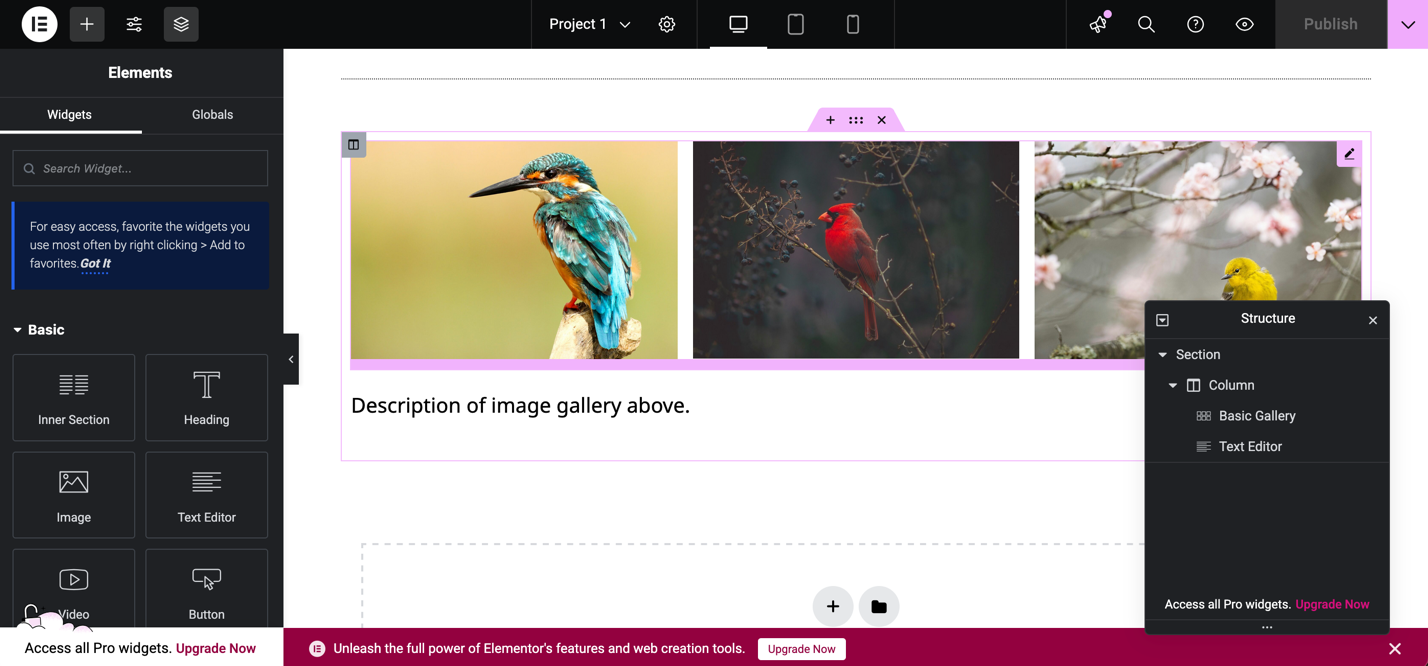
Screenshot of the Elementor pagebuilder plugin active on the Project 1 page.
Follow these instructions for creating or editing a page:
- Click Pages in the left-hand navigation menu.
- Click Add New if you want to create a new page or click the title of an existing page if you want to edit it. Some template pages have been created for you.
- Click the blue Edit with Elementor button to edit the page in Elementor.
- Click the plus button on the page to add a new page section and select your desired column layout.
- Click the plus button in the top left (part of the side menu) to add content widgets to the page by dragging and dropping them. You can search for widgets or browse the Basic and General sections of the Widget menu. (Please note that Pro widgets are not available with the basic Elementor plugin.) Some widgets of interest:
- Heading
- Text Editor
- Image
- Image Gallery
- HTML (to embed content from elsewhere, such as a video from Vimeo, audio from Soundcloud, a StoryMap…)
- After clicking on a widget, you can customize its content and styling from the left-hand menu pane. Navigate using the tabs at the top (Content / Style / Advanced) to make your desired customization.
- When you’re done working on page content, click the Publish button in the top right to make your changes visible on the front-end, or the Save Draft option (in top right carat dropdown) to save your changes but keep the page private for now. Don’t forget to save as you go, so your work is saved if you leave and come back.
Please note that you do not have to use the Elementor plugin to build pages and can instead choose to use the WordPress block editor. You can make this decision at the page level, or you can deactivate the Elementor plugin entirely from the Plugins page.
Uploading and Embedding PDFs
A plugin called PDF Posters has been installed for managing PDFs. Follow these instructions to embed a PDF on a page.
- Click on PDF Poster in the left-hand navigation menu.
- Click the Add New Pdf button at the top.
- Give your PDF a title, upload it using the upload button under PDF Poster Configuration, and configure the settings to your liking.
- Save your PDF using the Save button in the top right-hand corner.
- On the PDF listing page, click into the ShortCode button to copy the shortcode for embedding the PDF (which should look something like [pdf id=79]).
- Then paste the shortcode by itself into a text editor box in Elementor: when you publish the page, you should see the embedded PDF in place of the shortcode.
Page Settings: Changing the Page Title
You’ll want to change the page titles from the default template titles, at least for your project pages! Changes to a page title will be reflected on the site menu as well. You can do this from the page settings menu within a page, which you can access by clicking the gear icon at the top of the Elementor editor.

- Click into the page built with Elementor.
- Click the Page Settings gear icon at the top of the page (next to the page title).
- Navigate to the title section and type a new title for your page, then click Publish to save your changes. You should see your change appear on the site menu as well.
Please note that changing the page title does not change the page URL: to change the URL, navigate to the Pages page in WordPress, scroll down to the page whose URL you want to change, click Quick Edit, and change the content listed under slug (the slug is the part of the URL after your main site URL – myportfolio.sites.grinnell.edu/slug)

Page Settings: Showing/Hiding Page Title
Page titles on the project pages have been hidden by default on pages built with Elementor, but it is possible to show them at the top of the page. It is also possible to hide page titles on newly created pages.
- Click into the page built with Elementor.
- Click the Page Settings gear icon at the top of the page (next to the page title).
- Toggle the yes/no switch next to Hide Title, then click Publish to save your changes.
6.Customizing Your Site
While a theme does much of the heavy lifting for your site design, there will still be elements you want to customize, and WordPress lets you do this. Each theme has different customization options. Full-site editing with the block editor and/or the Elementor page builder let you do much of your customizing from within a page or template itself, rather than at the level of the theme.
Plugins installed on your portfolio site dictate some of the customization possibilities:
- Fonts Plugin for site fonts (can customize base typography, headings, and buttons & inputs): hover over the Fonts Plugin option in the left-hand navigation menu, then click Customize Fonts.
- Elementor Global Site Settings for font colors (and other site styling): when the Elementor editor is open, click the Site Settings button in the top left-hand corner to edit settings.


One example of a setting you can customize through Elementor’s Site Settings area is links: you can customize how links are signaled typographically throughout your site, with a specific color or typography (font, font size, font decoration such as an underline). You can customize both how links appear normally and how they appear when a mouse is hovering over them. Currently, links on your portfolio site are set to appear with an underline (that disappears when the viewer’s mouse hovers over them). You can change this by clicking the Site Settings button, then clicking Typography (under Theme Style), and then navigating down to the Link section to edit link color and typography (toggle between the Normal and Hover tabs to edit both), as shown in the screenshot on the left.
If you’re not seeing something you want to do, it may require some back-end tweaking – please feel free to talk to a DLAC staff member to get support in customizing your site to your liking!
7.Changing the Site Menu
Your site menu dictates the navigation menu for your site that is available to users on every site page, as well as how it is structured (for example, with subpage child menu items that appear underneath a parent item). Currently your site is set to automatically add new top-level pages to your site menu: you can change this from Appearance > Menus.
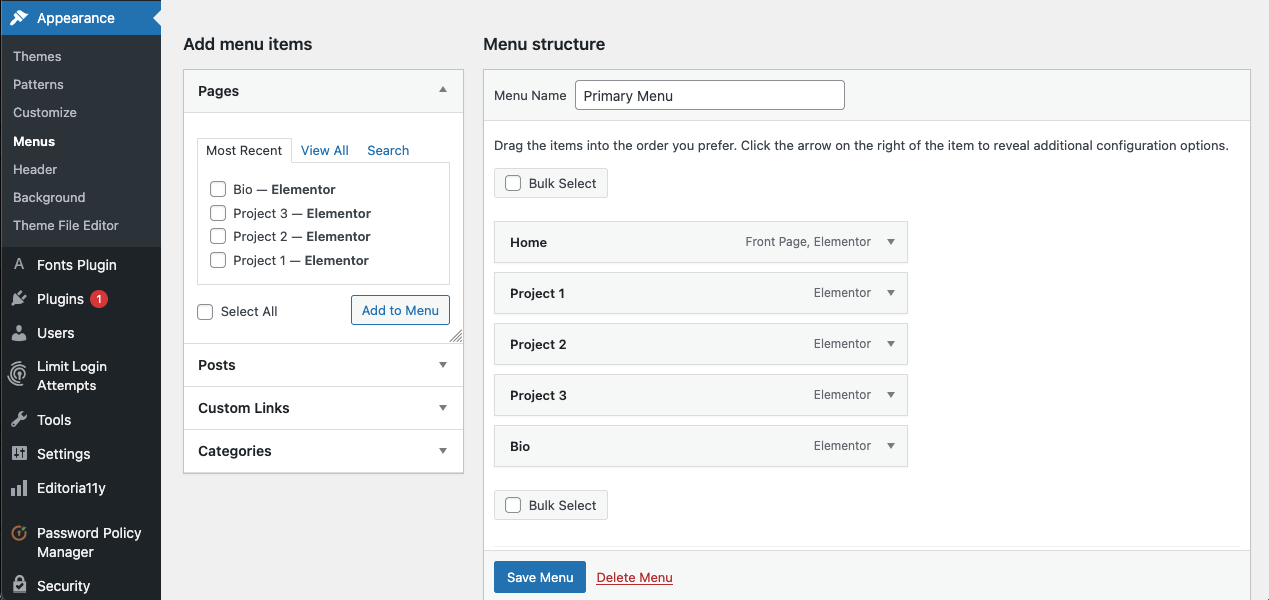
Menu editing
- Hover over Appearance in the left-hand navigation menu, then click Menus. This will bring up the menu editing page.
- The active menu we have created for your site is called “Primary.” Under Menu structure you can drag and drop existing items to reorder them or create dropdowns or select items from Add menu items on the right-hand side to add additional Pages (either Most Recent, View All, or Search from the tabs at the top) and more to the menu.
- You can set your site to automatically add top-level pages to the menu from here, if you would like.
- If you want one of your menu items to be a link to a file (such as a PDF hosted in the site Media Library) or an external link, click Custom Links (under Add menu items), add the file’s URL to the URL box, and your desired title to the link text box.
8.Uploading Multimedia to the Site Media Library
Your site’s Media Library is a place to store media files, such as images, text documents (PDFs, etc.) and some audio files, that have a relatively small file size. From the Media Library, you can easily manage these files and retrieve them for use across one or multiple pages of your site.
The default size limit for files uploaded to the Media Library is 150 MB. Thus, audio files can usually be stored there, preferably in the mp3 format. You can then use the Text Editor widget in Elementor to add the file to a page (that widget has an “add media” component). Alternatively, you can host the file on SoundCloud and use the SoundCloud widget in Elementor to add it to your page.
Because of their size, video files are generally best hosted on an external platform such as YouTube or Vimeo. For example, you can create a channel on YouTube in which your videos are unlisted or private. Use the Elementor video widget to add the video to your page.
If you are creating a page using the WordPress block editor instead of Elementor, use the Audio or Video block or one of the Embed blocks to add the media to your page.
To manage files in your Media Library, follow these directions:
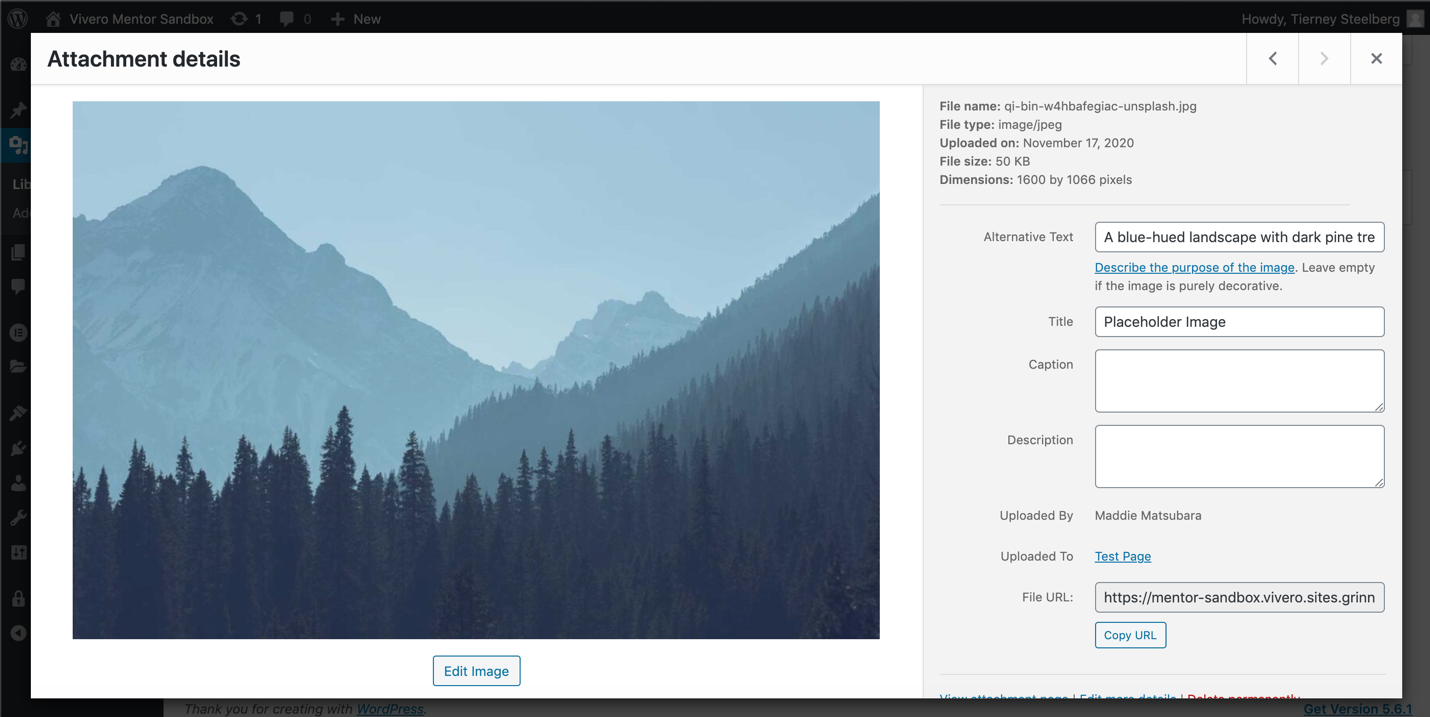
Media Library item description
- Click Media in the left-hand navigation menu to access your Media Library.
- To add a new file or multiple new files, click the Add New button, and either select the file(s) from your computer, or drag and drop one or more files to the upload box.
- Once a file has been uploaded, you can edit its title, caption, and description – and, in the case of images, its alt text, for accessibility – and you can also access the file URL, which allows you to link to the file. You can use the file URL as a link on Pages or in your Site Menu.
- Alt text, or alternative text, is text that describes the image for users who cannot see it. It is an important piece of web accessibility for website creators to put in place. You can learn more about alt text for images from this helpful Alt Text article from Moz. W3C Accessibility also has a more in-depth alt text tutorial.
- In the case of images, you can also do some barebones editing (cropping, rotating, flipping) from within the Media Library. The Gutenberg editor and Elementor page-builder plugin also allow you to do edit media from within the page editing view.
- You can also upload media directly to a page while working on building out content – this media will be automatically added to your media library.
9.Making Your Site Accessible
“Web accessibility is the inclusive practice of ensuring there are no barriers that prevent interaction with, or access to, websites on the World Wide Web by people with physical disabilities, situational disabilities, and socio-economic restrictions on bandwidth and speed.” (Wikipedia).
As you build out your site, keep accessibility in mind – think about:
- ensuring a logical document/page structure (nesting headings correctly H2 > H3 > H4…)
- breaking up walls of text
- use of color: appropriate color contrasts, avoiding colors that are too bright, being careful when using colors to convey meaning…)
- legible typeface and font size
- providing text alternatives to multimedia content (alt text for images, captions or transcripts for videos)
- writing links that make sense out of context (avoid “click here”)
- using an accessibility checker, like the WAVE Web Accessibility Evaluation tool or the Editoria11y Accessibility checker plugin
- The Editoria11y Accessibility checker plugin is already installed.
10.Going Further: Themes & Plugins
Site Theme
A site’s theme dictates your site’s general appearance. You can customize your existing theme or choose a different theme entirely. Select Appearance > Customize from the sidebar menu to customize your existing theme, or Appearance > Themes to play around with other themes. The Live Preview button lets you see what your site content would look like with another theme!
With the Elementor plugin installed, some Elementor settings may override the theme, or vice versa, so you’ll want to test and monitor your content as you make changes.
Plugins
Plugins add additional functionality to your website. For example, if you would like your site to have a contact form, you might be interested in installing a plugin to accomplish this goal.
You can install them by clicking Plugins from the sidebar menu and then clicking the Add New Plugin button at the top. There are many plugins out there to meet a variety of needs: make sure to read the details carefully. Before you install a new plugin, make sure your plugin has other active installations, good reviews, and regular updates; and is compatible with your version of WordPress.
11.Reminder: Copyright
As the copyright holder to your own work, you can take steps to protect your work from copyright infringement. For example, you can add watermarks to your images and run them through tools like Glaze and Nightshade to keep them from being used in generative AI training models.
Given that this is an art portfolio, most, if not all, of the media on the site are works that you have created yourself. But since your portfolio is public, it’s important that any images and media that you did not create yourself are licensed for you to reuse freely, without worrying about copyright. Consider:
- A Creative Commons license is a copyright license that allows works to be used by others. Different types of Creative Commons licenses exist, with differing restrictions. For example:
- CC BY-NC-SA (attribution, non-commercial, share-alike)
- Works in the public domain are freely available and are not subject to copyright laws.
12.Getting Help When You Need It
If you have questions, need help, get stuck, or want support trying something new, there are support resources out there for you!
For website technical questions, talk to:
- Vivero Digital Fellows trained in a variety of digital tools and approaches (including WordPress) hold peer mentoring drop-in hours from 7-9 PM in the Burling Library Digital Studio, Sundays through Thursdays while classes are in session.
- Mo Pelzel, Director of Academic Technology (DLAC): email pelzelmo@grinnell.edu
- Tierney Steelberg, Digital Liberal Arts Specialist (DLAC): email steelber@grinnell.edu
For career and site content questions, talk to:
- Destini Ross, Associate Director, Arts, Media & Communications (CLS): email rossdestini@grinnell.edu
13.Portfolio Template Checklist
Content
- Did you change the title of your site to reflect your own name/projects?
- Did you rename your project pages and delete any you are not using?
- Did you replace the filler text across the template?
- Did you upload your own images to replace the stock images on the template?
- Does your site have a bio and information about how to contact you?
Copyright
- Are the images and other content across the site ones that you have created?
- Have you protected your work with watermarks, low-res copies, and/or an AI protection tool like Glaze and Nightshade?
- If using media created by others, have you credited the creators and ensured that they are freely available for you to reuse on your portfolio?
Accessibility
- Are your font and font size legible?
- Is there appropriate contrast between text color and background color?
- Are your links descriptive (no “click here”)?
- Do all your images have alt text?
- Do your videos have subtitles/transcripts?
- Are your PDFs accessible?
- Did you run an accessibility check?