To export your domain, we will create a backup of both the files in your domain and the databases that your domain draws from. First, click on the ‘Manage Your Account’ menu at the top of your screen and select ‘Migration Information.
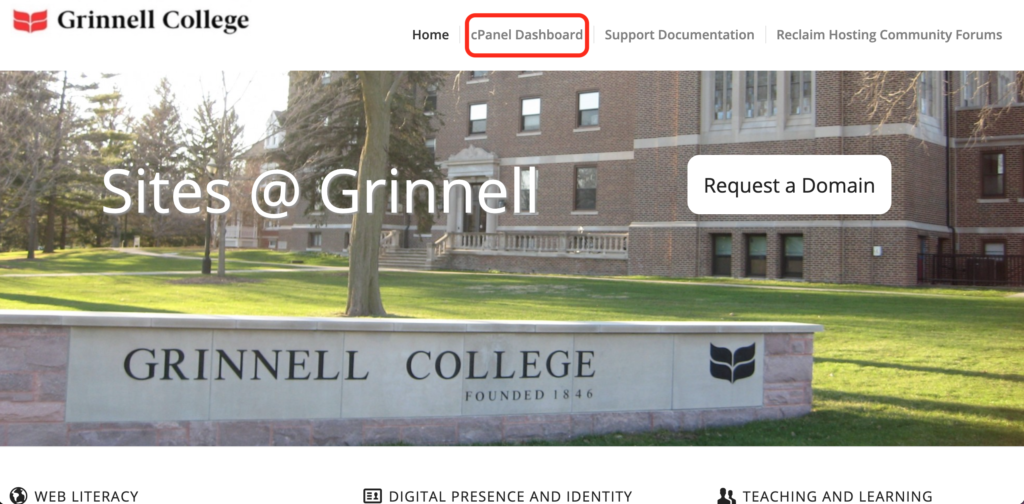
- To get started you’ll need to login to your control panel (https://sites.grinnell.edu/dashboard) using your Grinnell College username and password.
- Once you’re logged in, you’ll see the cPanel interface. Now click on the Manage Your Account menu at the top of your screen and select Migration Information.

- To create a backup of your files and databases, simply click the button labeled Add Backup. The system will take a moment to create a backup. When it is complete, you will see the new backup appear below the button. You can click on this backup to download the file.

